Part 3: Integration & Deployment#
Step 5: Observe the Framework in Action#
Let’s run a real multi-step query to see how the framework orchestrates complex tasks. We’ll plot historical beam current data over 24 hours - a query that requires channel finding, time parsing, archiver data retrieval, and visualization.
This walkthrough uses mock services that simulate real control system hardware and archiver data. This lets you experience the complete framework workflow without requiring access to production systems. The mock services are explained in detail in Step 6: Mock Services for Development, and switching from mock to production control systems is covered in 8.2: Migrate to Production Control System.
Start the Chat Interface#
First, launch the interactive chat interface:
# Direct command
osprey chat

# Or use the interactive menu
osprey
# Then select: [>] chat - Start CLI conversation
Phase 0: Initialization and Component Loading (happens during startup)
When you start the chat interface (via osprey chat or through the interactive menu), the framework loads and prepares all system components before accepting any queries. The registry system discovers and initializes capabilities, context types, and infrastructure components based on your application’s registry configuration.
What’s Loading:
Your my-control-assistant uses framework-provided capabilities including core infrastructure (memory, Python execution, time parsing, response generation) and control system capabilities (channel finding, archiver retrieval, channel value reading, channel writing). This modular approach means the framework provides battle-tested capabilities out of the box, while remaining extensible for custom domain logic.
Why This Matters:
The registry system enables convention-over-configuration patterns where the framework automatically discovers your capabilities without manual wiring. This makes the system extensible - adding new capabilities requires only implementing the class and registering it.
Terminal Output:
 🔄 Initializing configuration...
 [11/11/25 11:20:35] INFO     Loading configuration from explicit path:
                              <workspace>/my-control-assistant/config.yml
 🔄 Initializing framework...
[11/29/25 14:06:30] INFO     Registry: Registry initialization complete!
                             Components loaded:
                                • 9 capabilities: memory, time_range_parsing, python, respond, clarify,
                                                  channel_finding, channel_read, channel_write, archiver_retrieval
                                • 14 nodes (including 5 core infrastructure)
                                • 7 context types: MEMORY_CONTEXT, TIME_RANGE, PYTHON_RESULTS,
                                                   CHANNEL_ADDRESSES, CHANNEL_VALUES, CHANNEL_WRITE_RESULTS,
                                                   ARCHIVER_DATA
                                 • 1 data sources: core_user_memory
                                 • 2 services: python_executor, channel_finder
 ✅ Framework initialized! Thread ID: cli_session_76681b34
Further Reading: Registry and Discovery, Infrastructure Architecture: Classification-Orchestration Pipeline
Submit a Query#
Now that the framework is initialized, submit your query:
👤 You: plot the beam current over the last 24
Query Processing Pipeline#
When you submit this query, the framework processes it through a sophisticated pipeline that transforms natural language into coordinated multi-step execution.
Phases 1-3: Task Analysis and Planning#
Your query goes through three intelligent phases that transform natural language into a structured execution plan. Each phase builds on the previous one to ensure accurate task understanding and optimal execution strategy.
The task extraction system analyzes your conversation to determine context dependencies - whether the current request needs information from previous messages or stored memories.
What’s Happening:
For the request “plot the beam current over the last 24 hours”, task extraction:
Retrieves context from available data sources (currently
core_user_memoryfor stored user memories, but applications can register additional sources like knowledge graphs or facility databases)Checks if the request references previous conversation (
depends_on_chat_history: False- it’s standalone)Checks if it needs stored information (
depends_on_user_memory: False- no memory needed)Extracts the task: “Plot the beam current over the last 24 hours” (essentially unchanged since it’s self-contained)
Why This Matters:
Task extraction serves three critical purposes:
Reference Resolution: If you say “show me that channel again” or “what was it an hour ago?”, task extraction resolves these references using chat history, creating a self-contained task like “Display the beam current channel (SR:C01-BI:G02D<IBPM1:signal1>-AM)” or “Retrieve CPU usage from approximately 13:23 (one hour before last check)”. This is what allows conversational follow-ups to work correctly.
Context Reuse Optimization: The dependency flags (
depends_on_chat_historyanddepends_on_user_memory) tell the orchestrator whether it should prioritize reusing context from previous executions. Whendepends_on_chat_history=True, the orchestrator knows to checkagent_contextfor existing channel addresses, time ranges, or other data from earlier in the conversation, avoiding redundant capability invocations.Performance & Scalability: Chat history grows rapidly in typical AI agent conversations. Without task extraction, you’d need to pass the entire conversation history (plus all integrated data sources) to every downstream component. This would significantly slow all language model operations. Task extraction compresses multi-turn conversations into focused task descriptions, keeping token counts manageable and response times fast.
Quality Control: For task extraction to work properly with facility-specific terminology and conventions, you may need to customize the task extraction prompts to make the system aware of your facility’s peculiarities. See Framework Prompt Customization in Part 4 for guidance on customizing task extraction and other framework prompts.
Performance Note: The framework can operate in bypass mode (controlled via /task:off slash command or config) which skips LLM-based extraction and passes formatted context directly to classification, trading some intelligence for speed on standalone queries.
🖥️ View Terminal Output
👤 You: plot the beam current over the last 24
🔄 Processing: plot the beam current over the last 24

INFO Task_Extraction: Starting Task Extraction and Processing
INFO Task_Extraction:  * Extracted: 'Plot the beam current over the last 24 hours'
INFO Task_Extraction:  * Builds on previous context: False
INFO Task_Extraction:  * Uses memory context: False
INFO ✅ Task_Extraction: Completed Task Extraction and Processing in 1.23s
Further Reading: Task Extraction
The classification system determines which capabilities are needed to complete the extracted task. This uses LLM-based classification with the few-shot examples you provided in each capability’s _create_classifier_guide() method.
What’s Happening:
Your assistant has 9 capabilities available (see registry system for component registration details):
Framework capabilities:
time_range_parsing- Parse time expressions like “last 24 hours” into datetime objectsmemory- Save and retrieve information from user memory filespython- Generate and execute Python code for calculations and plottingrespond- Generate natural language responses to user queriesclarify- Ask clarifying questions when the user’s intent is ambiguouschannel_finding- Find control system channels using semantic searchchannel_write- Write values to control system channels with LLM-based parsingchannel_read- Read current values from control system channelsarchiver_retrieval- Query historical time-series data from the archiver
The framework evaluates all 9 capabilities independently using their classifier guides. For the request “Show me the beam current over the last 24 hours”, it asks:
“Does this task require
time_range_parsing?” → YES (need to parse “last 24 hours”)“Does this task require
memory?” → NO (not storing/recalling information)“Does this task require
python?” → YES (need to plot the data)“Does this task require
channel_finding?” → YES (need to find the beam current channel)“Does this task require
channel_read?” → NO (need historical data, not current values)“Does this task require
archiver_retrieval?” → YES (need to retrieve time-series data)
The classification happens in parallel for efficiency, with each capability evaluated independently based on the examples and instructions in its _create_classifier_guide() method.
Why This Matters:
Accurate capability selection is critical because it limits the amount of context, examples, and prompts shown to the orchestrator in the next phase. By selecting only relevant capabilities (4 of 9 in this example), the orchestrator receives focused, targeted information rather than being overwhelmed with irrelevant examples. This improves both latency (fewer tokens to process) and accuracy (more relevant context for planning). When planning a plotting task, the orchestrator sees plotting and data retrieval examples, not memory storage or unrelated capability patterns, leading to cleaner execution plans.
Quality Control: Your classifier examples directly determine selection accuracy. Good examples (clear positive/negative cases with reasoning) lead to accurate capability selection. Poor examples cause misclassification and failed executions. You can always refine the _create_classifier_guide() methods in your capabilities to improve accuracy.
Performance Note: The framework can operate in bypass mode (controlled via /caps:off slash command or config) which skips classification and activates all capabilities, useful for debugging when you’re unsure which capabilities should be active.
🖥️ View Terminal Output
INFO Classifier: Starting Task Classification and Capability Selection
INFO Classifier: Classifying task: Plot the beam current measurements over the last 24 hours
INFO Classifier: Classifying 6 capabilities with max 5 concurrent requests
INFO Classifier:  >>> Capability 'time_range_parsing' >>> True
INFO Classifier:  >>> Capability 'memory' >>> False
INFO Classifier:  >>> Capability 'channel_read' >>> False
INFO Classifier:  >>> Capability 'channel_finding' >>> True
INFO Classifier:  >>> Capability 'python' >>> True
INFO Classifier:  >>> Capability 'archiver_retrieval' >>> True
INFO Classifier: 6 capabilities required: ['respond', 'clarify', 'time_range_parsing',
                 'python', 'channel_finding', 'archiver_retrieval']
INFO ✅ Classifier: Completed Task Classification and Capability Selection in 1.92s
Further Reading: Classification and Routing, Classifier Guide example
With the active capabilities identified, the orchestrator decides how to chain them together. Osprey supports two orchestration modes: plan-first (default) creates a complete execution plan upfront, while reactive (ReAct) decides one step at a time based on intermediate results.
This walkthrough uses plan-first mode. The orchestrator analyzes all available capabilities and creates a complete execution plan showing exactly how each capability will be used, what inputs each step requires, and how results flow between steps.
For this query, the orchestrator creates a 5-step plan with clear dependency relationships:
Step 1: channel_finding (no dependencies)
Step 2: time_range_parsing (no dependencies)
Step 3: archiver_retrieval (requires: Steps 1, 2)
Step 4: python (requires: Step 3)
Step 5: respond (requires: Step 4)
The orchestrator uses the _create_orchestrator_guide() examples you provided in each capability to understand when and how to use each capability effectively.
Why This Matters:
Transparency for High-Stakes Environments: Complete visibility into planned operations before execution begins - which channels will be accessed, what data will be retrieved, and what operations will be performed. This is essential in scientific facilities and production environments where control system interactions require careful oversight.
Human-in-the-Loop Safety: The explicit execution plan enables human approval workflows where operators can review and approve plans before hardware interaction. In reactive mode, each step is individually approved before execution instead.
Dependency Analysis: The orchestrator explicitly identifies which steps depend on others and which are independent. While the framework currently executes steps sequentially, the dependency structure positions Osprey for future optimizations like parallel execution of independent steps (see GitHub issue #19 for planned improvements)
Quality Control:
🖥️ View Terminal Output
INFO Orchestrator: Starting Execution Planning and Orchestration
INFO Orchestrator: Planning for task: Plot the beam current measurements over the last 24 hours
INFO Orchestrator: Available capabilities: ['respond', 'clarify', 'time_range_parsing',
                   'python', 'channel_finding', 'archiver_retrieval']
INFO Orchestrator: Creating execution plan with orchestrator LLM
INFO Orchestrator: Orchestrator LLM execution time: 5.19 seconds
INFO Orchestrator: ==================================================
INFO Orchestrator:  << Step 1
INFO Orchestrator:  << ├───── id: 'beam_current_channels'
INFO Orchestrator:  << ├─── node: 'channel_finding'
INFO Orchestrator:  << ├─── task: 'Find the channel addresses for beam current measurements in the system'
INFO Orchestrator:  << └─ inputs: 'None'
INFO Orchestrator:  << Step 2
INFO Orchestrator:  << ├───── id: 'last_24h_timerange'
INFO Orchestrator:  << ├─── node: 'time_range_parsing'
INFO Orchestrator:  << ├─── task: 'Parse and convert the time range 'last 24 hours' to absolute
                      datetime objects representing the start and end times'
INFO Orchestrator:  << └─ inputs: 'None'
INFO Orchestrator:  << Step 3
INFO Orchestrator:  << ├───── id: 'beam_current_historical_data'
INFO Orchestrator:  << ├─── node: 'archiver_retrieval'
INFO Orchestrator:  << ├─── task: 'Retrieve historical beam current measurement data from the
                      archiver for the last 24 hours'
INFO Orchestrator:  << └─ inputs: '[{'CHANNEL_ADDRESSES': 'beam_current_channels'},
                                   {'TIME_RANGE': 'last_24h_timerange'}]'
INFO Orchestrator:  << Step 4
INFO Orchestrator:  << ├───── id: 'beam_current_plot'
INFO Orchestrator:  << ├─── node: 'python'
INFO Orchestrator:  << ├─── task: 'Create a time-series plot of beam current measurements over
                      the last 24 hours using the retrieved archiver data'
INFO Orchestrator:  << └─ inputs: '[{'ARCHIVER_DATA': 'beam_current_historical_data'}]'
INFO Orchestrator:  << Step 5
INFO Orchestrator:  << ├───── id: 'final_response'
INFO Orchestrator:  << ├─── node: 'respond'
INFO Orchestrator:  << ├─── task: 'Deliver the beam current measurement plot to the user with
                      relevant context and interpretation'
INFO Orchestrator:  << └─ inputs: '[{'PYTHON_RESULTS': 'beam_current_plot'}]'
INFO Orchestrator: ==================================================
INFO ✅ Orchestrator: Final execution plan ready with 5 steps
Further Reading: Orchestrator Planning
🔍 Want to Review This Plan Before Execution? Use Planning Mode!
Phases 1-3 always run automatically - the framework extracts the task, classifies capabilities, and creates the execution plan. But by default, execution begins immediately after the plan is created. What if you wanted to review and approve the plan before any execution starts?
Planning Mode: Pause Before Execution
Planning mode pauses after Phase 3 (plan creation) and before Phase 4 (execution), giving you full transparency into what the framework intends to do. This is especially valuable for control system operations where you want to verify the approach before any hardware interaction.
How to Enable Planning Mode:
# Start the CLI chat interface
osprey chat

# Method 1: Use /planning slash command for a single query
You: /planning plot the beam current over the last 24h

# Method 2: Enable globally in config.yml (all queries require approval)
# In config.yml:
orchestration:
  planning_mode: true

# Then normal queries will automatically enter planning mode:
You: plot the beam current over the last 24h
What You’ll See:
Instead of immediately executing, the framework will:
Generate the execution plan (same 5-step plan shown above)
Save it to
_agent_data/execution_plans/pending_plans/pending_execution_plan.jsonDisplay the full plan with all steps, dependencies, and expected outputs
Request your approval before proceeding
Example: The Execution Plan JSON
Here’s what the complete execution plan looks like in planning mode:
 1{
 2  "__metadata__": {
 3    "current_task": "Plot beam current measurements over the last 24 hours",
 4    "original_query": "plot the beam current over the last 24",
 5    "created_at": "2025-11-10T07:04:26.750520",
 6    "serialization_type": "pending_execution_plan"
 7  },
 8  "steps": [
 9    {
10      "context_key": "beam_current_channels",
11      "capability": "channel_finding",
12      "task_objective": "Find all channel addresses for beam current measurements in the system",
13      "success_criteria": "Successfully identified one or more valid beam current channel addresses",
14      "expected_output": "CHANNEL_ADDRESSES",
15      "parameters": null,
16      "inputs": []
17    },
18    {
19      "context_key": "last_24_hours_timerange",
20      "capability": "time_range_parsing",
21      "task_objective": "Parse and convert 'last 24 hours' into absolute datetime range with start and end times",
22      "success_criteria": "Time range successfully converted to start_date and end_date datetime objects representing the last 24 hours",
23      "expected_output": "TIME_RANGE",
24      "parameters": null,
25      "inputs": []
26    },
27    {
28      "context_key": "beam_current_archiver_data",
29      "capability": "archiver_retrieval",
30      "task_objective": "Retrieve historical beam current measurements from the archiver for the last 24 hours using identified channels",
31      "success_criteria": "Time-series beam current data successfully retrieved with timestamps and values for all requested channels",
32      "expected_output": "ARCHIVER_DATA",
33      "parameters": null,
34      "inputs": [
35        {
36          "CHANNEL_ADDRESSES": "beam_current_channels"
37        },
38        {
39          "TIME_RANGE": "last_24_hours_timerange"
40        }
41      ]
42    },
43    {
44      "context_key": "beam_current_plot",
45      "capability": "python",
46      "task_objective": "Create a professional time-series plot of beam current measurements over the 24-hour period with appropriate labeling, legends, and formatting",
47      "success_criteria": "Plot successfully generated as an image file with clear visualization of beam current trends over the 24-hour period",
48      "expected_output": "PYTHON_RESULTS",
49      "parameters": null,
50      "inputs": [
51        {
52          "ARCHIVER_DATA": "beam_current_archiver_data"
53        }
54      ]
55    },
56    {
57      "context_key": "plot_delivery",
58      "capability": "respond",
59      "task_objective": "Deliver the beam current plot and summary to the user",
60      "success_criteria": "User receives the plot visualization and confirmation of the 24-hour data display",
61      "expected_output": null,
62      "parameters": null,
63      "inputs": [
64        {
65          "PYTHON_RESULTS": "beam_current_plot"
66        }
67      ]
68    }
69  ]
70}
Understanding the Plan Structure:
Each step in the plan includes:
context_key: Where results will be stored (e.g., “beam_current_channels”)
capability: Which capability will execute (e.g., “channel_finding”)
task_objective: What the step aims to accomplish
expected_output: The context type produced (e.g., “CHANNEL_ADDRESSES”)
inputs: Which previous steps’ outputs this step depends on (
[]= no dependencies)
What You’ll See - Approval Workflow:
When planning mode is enabled, the framework interrupts execution and displays the plan:
⚠️ **HUMAN APPROVAL REQUIRED** ⚠️

**Planned Steps (5 total):**
**Step 1:** Find all channel addresses for beam current measurements
in the system. (channel_finding)

**Step 2:** Parse and convert 'last 24 hours' into absolute datetime
range with start and end times. (time_range_parsing)

**Step 3:** Retrieve historical beam current measurements from the
archiver for the last 24 hours using identified channels.
(archiver_retrieval)

**Step 4:** Create a professional time-series plot of beam current
measurements over the 24-hour period with appropriate labeling,
legends, and formatting. (python)

**Step 5:** Deliver the beam current plot and summary to the user.
(respond)

**Plan File:**
`/path/to/_agent_data/execution_plans/pending_plans/pending_execution_plan.json`

**To proceed, respond with:**
- **`yes`** to approve and execute the plan
- **`no`** to cancel this operation

👤 You: _
How Approval Works:
The framework uses LangGraph’s interrupt system to pause execution and wait for your response. Your response is analyzed semantically by an LLM, so you don’t need to type exactly “yes” or “no” - natural language works:
Approve: “yes”, “approve”, “go ahead”, “looks good”, “execute it”, etc.
Reject: “no”, “cancel”, “stop”, “don’t run this”, “I don’t approve”, etc.
After approval, the framework resumes from exactly where it paused and executes the plan.
Customizing Approval Messages (for Developers):
When building your own capabilities that require approval, you can customize the message shown to users. The framework uses LangGraph’s interrupt system with custom interrupt data:
# Example from machine_operations capability
from osprey.approval import create_approval_type, handle_service_with_interrupts

# In your capability's execute method:
service_result = await handle_service_with_interrupts(
    service=python_service,
    request=execution_request,
    config=service_config,
    logger=logger,
    capability_name="YourCapability"  # Customizes the approval type
)
The approval system works through:
Interrupt Creation: Service raises
GraphInterruptwith custom message dataUser Sees: Formatted message explaining what will be executed
User Responds: Natural language response (analyzed by LLM)
Resume Execution: Service receives approval data via
Command(resume=response)
You can customize:
The approval message format and content
What data is shown to the user (PV names, parameter values, etc.)
Warning levels for different operation types
Additional context or safety information
Now let’s see what actually happened when this plan executed →
Phase 4: Execution and Results#
With the execution plan complete, the framework executes each planned step in sequence, coordinated by the router. The router acts as the central decision authority, managing state updates, error handling, and dependency resolution automatically.
How Execution Works
Each capability execution follows a consistent pattern managed by the @capability_node decorator:
Read from State: Capability accesses required inputs from previous steps via AgentState
Execute Business Logic: Your capability’s
execute()method performs its domain-specific taskUpdate State: Results are stored as context objects for downstream capabilities
Return to Router: Control returns to router to determine next step
Dependency Resolution: Steps 1-2 have no dependencies and execute immediately, while Step 3 waits for both to complete. The router enforces these dependencies automatically based on the execution plan.
Further Reading: Message and Execution Flow, State and Context Management
Channel Finding
📋 Execution Plan:
Task: Find all channel addresses for beam current measurements in the system
Output:
CHANNEL_ADDRESSEScontext (stored as “beam_current_channels”)Dependencies: None → Executes immediately
Pipeline: Hierarchical navigation through your channel database
✅ Execution Result:
The hierarchical pipeline successfully navigated: system (DIAG) → family (DCCT) → device (MAIN) → field (CURRENT) → subfield (RB)
Found 1 channel: DIAG:DCCT:MAIN:CURRENT:RB
🖥️ View Terminal Output
INFO Router: Executing step 1/5 - capability: channel_finding
INFO Channel_Finding: Channel finding query: "Find all channel addresses for beam current..."
INFO Stage 1: Split into 1 atomic query
INFO Stage 2: Navigating hierarchy...
INFO   Level: system
INFO     Available options: 4
INFO     → Selected: ['DIAG']
INFO     Level: family
INFO       Available options: 4
INFO       → Selected: ['DCCT']
INFO       Level: device
INFO         Available options: 1
INFO         → Selected: ['MAIN']
INFO         Level: field
INFO           Available options: 2
INFO           → Selected: ['CURRENT']
INFO           Level: subfield
INFO             Available options: 1
INFO             → Selected: ['RB']
INFO   → Found 1 channel(s)
INFO Channel_Finding: Found 1 channel addresses
Time Range Parsing
📋 Execution Plan:
Task: Parse and convert ‘last 24 hours’ into absolute datetime range with start and end times
Output:
TIME_RANGEcontext (stored as “last_24_hours_timerange”)Dependencies: None
Processing: Converts relative time expressions to absolute timestamps
✅ Execution Result:
Successfully parsed relative time “last 24 hours” into absolute datetime range:
Start: 2025-11-10 15:25:16
End: 2025-11-11 15:25:16
🖥️ View Terminal Output
INFO Router: Executing step 2/5 - capability: time_range_parsing
INFO Time_Range_Parsing: Starting time range parsing
INFO Time_Range_Parsing: Query: "Parse and convert 'last 24 hours' into absolute datetime range..."
INFO Time_Range_Parsing: Parsed time range:
INFO Time_Range_Parsing:   Start: 2025-11-10 15:25:16
INFO Time_Range_Parsing:   End:   2025-11-11 15:25:16
Archiver Data Retrieval
📋 Execution Plan:
Task: Retrieve historical beam current measurements from the archiver for the last 24 hours using identified channels
Output:
ARCHIVER_DATAcontext (stored as “beam_current_archiver_data”)Dependencies: ⚠️ BOTH Step 1 (channels) AND Step 2 (time range) must complete first
Inputs Required: -
CHANNEL_ADDRESSESfrom “beam_current_channels” -TIME_RANGEfrom “last_24_hours_timerange”
This is a converging dependency - the framework waits for both parallel steps to complete before executing this step.
✅ Execution Result:
Successfully retrieved 10,000 data points for 3 channels covering the full 24-hour period (2025-11-10 15:25:16 to 2025-11-11 15:25:16).
🖥️ View Terminal Output
INFO Router: Executing step 3/5 - capability: archiver_retrieval
INFO Archiver_Retrieval: Starting archiver data retrieval: Retrieve historical beam current...
INFO Archiver_Retrieval: Successfully extracted both required contexts: CHANNEL_ADDRESSES and TIME_RANGE
INFO Archiver_Retrieval: Retrieved archiver data: 10000 points for 3 channels
                         from 2025-11-10 15:25:16 to 2025-11-11 15:25:16
Python Visualization
📋 Execution Plan:
Task: Create a professional time-series plot of beam current measurements over the 24-hour period with appropriate labeling, legends, and formatting
Output:
PYTHON_RESULTScontext (stored as “beam_current_plot”)Dependencies: Step 3 (archiver data)
Inputs:
ARCHIVER_DATAfrom “beam_current_archiver_data”Execution Mode: Read-only (no hardware writes)
Approval Required: No (safe visualization operation)
✅ Execution Result:
Generated: 3,027 characters of Python code (82 lines)
Execution Time: 2.52 seconds
Mode: Read-only (static analysis passed)
Outputs: - 2 figure files (14” × 7” dimensions) - Complete Jupyter notebook with execution code
The Python capability automatically determined this was a safe read-only visualization task requiring no approval.
🔍 How Generated Code Interacts with Control Systems
The control assistant template includes a custom Python prompt builder that teaches the LLM to use osprey.runtime utilities for control system operations. This is an example of framework prompt customization (covered in Part 4).
What is osprey.runtime?
osprey.runtime is a control-system-agnostic module that provides simple synchronous functions for reading and writing to any configured control system (EPICS, Mock, LabVIEW, etc.). When the Python capability generates code that needs to interact with control systems, it’s taught to use these utilities:
from osprey.runtime import write_channel, read_channel

# Read from control system (works like EPICS caget)
current = read_channel("BEAM:CURRENT")
print(f"Current: {current} mA")

# Write to control system (works like EPICS caput)
write_channel("MAGNET:SETPOINT", 5.0)
Why Use osprey.runtime Instead of Direct Control System Libraries?
Control-System Agnostic: Same code works with EPICS, Mock, or any other configured connector
Automatic Configuration: Uses the control system settings from when the code was generated (reproducible notebooks)
Safety Integration: All boundary checking, limits validation, and approval workflows happen automatically
Simple API: Synchronous functions (no async/await needed in generated code)
How It Works:
The control assistant template extends the framework’s default Python prompt builder with control system-specific guidance:
# src/my_control_assistant/framework_prompts/python.py
class ControlSystemPythonPromptBuilder(DefaultPythonPromptBuilder):
    def get_instructions(self) -> str:
        base_instructions = super().get_instructions()

        control_system_guidance = '''
        === CONTROL SYSTEM OPERATIONS ===
        For reading/writing to control systems, use osprey.runtime utilities:

        from osprey.runtime import write_channel, read_channel

        These utilities work with ANY control system (EPICS, Mock, etc.)
        '''

        return base_instructions + control_system_guidance
This custom prompt builder is registered in registry.py and automatically used whenever the Python capability generates code.
Where to Learn More:
Part 4, Step 10: Framework Prompt Customization - Complete guide to customizing framework prompts
Prompt Customization - Advanced prompt customization patterns
Control System Connectors - Control system connector API reference
🖥️ View Terminal Output
INFO Router: Executing step 4/5 - capability: python
INFO Python: Python executor service using in-memory checkpointer
INFO Python_Generator: Generating code with prompt length: 2668 characters
INFO ✅ Python_Generator: Successfully generated 3027 characters of code
INFO Python_Analyzer: Execution policy decision: ExecutionMode.READ_ONLY, approval: False
INFO Osprey: Static analysis passed: 1 non-critical issues, execution mode: read_only
INFO Python_Executor: LOCAL EXECUTION: Running code in read_only mode
INFO Python_Executor: Code execution completed successfully
Complete Response to User
🤖 # Beam Current Measurements - 24 Hour Analysis

## Execution Summary

✅ **Task completed successfully** on 2025-11-11 at 07:25:24

**Execution Details:**
- **Status:** Success
- **Execution Time:** 2.52 seconds
- **Code Lines:** 82
- **Python Environment:** `<workspace>/venv/bin/python3.11`

## Visualizations Generated

**2 figures have been created and saved to the execution folder:**
- These plots display the beam current time-series data over the 24-hour period
- Professional styling applied with multi-channel visualization support
- Figure size: 14" × 7" for detailed readability

## Data Processed

The analysis retrieved beam current archiver data including:
- **Multiple channels:** Available channels from the beam current archiver system
- **Time-series measurements:** Complete 24-hour dataset with timestamps
- **Data Source:** Archiver data accessed via context configuration

📊 **Jupyter Notebook:**
- A complete notebook with execution code and detailed results is available in the execution folder

📊 Generated Figures:
• /path/to/beam_current_timeseries.png
• /path/to/figures/figure_01.png
What Just Happened:
The framework executed a 5-step plan that:
Found 3 beam current channel addresses using hierarchical navigation
Parsed “last 24 hours” into absolute timestamps (2025-11-10 15:25:16 → 2025-11-11 15:25:16)
Retrieved 10,000 archiver data points across the 3 channels
Generated 82 lines of Python code and created 2 visualization figures
Delivered this comprehensive response with execution metadata
Step 6: Mock Services for Development#
The Control Assistant template includes realistic mock services that let you develop and test your assistant without access to real control system hardware or archiver services.
Framework Integration
The mock services integrate seamlessly with the framework through the connector abstraction layer:
Pluggable Architecture: Capabilities use
ConnectorFactoryto create connectors based on yourconfig.ymlsettingsZero Code Changes: Switch from development to production by changing one config field (
type: mock→type: epics) — see 8.2: Migrate to Production Control System for the complete migration guideRealistic Behavior: Mock services simulate network latency, measurement noise, and control system patterns
Universal Compatibility: Accept any channel names—no need to predefine channel lists
The mock services are automatically used when you run the generated template. This allows you to:
Complete the tutorial without hardware access
Verify that the framework behavior is correct
Understand how data flows through your capabilities
Test your configuration before connecting to production systems
How Data is Generated
The mock control system simulates real-time channel value reads with realistic behavior.
The mock connector attempts to generate reasonable values based on channel naming patterns:
def _generate_initial_value(self, pv_name: str) -> float:
      """Generate realistic values based on channel type."""
      pv_lower = pv_name.lower()

      if 'current' in pv_lower:
         return 500.0 if 'beam' in pv_lower else 150.0
      elif 'pressure' in pv_lower:
         return 1e-9  # Vacuum pressure in Torr
      elif 'voltage' in pv_lower:
         return 5000.0
      elif 'temp' in pv_lower:
         return 25.0  # Temperature in °C
      elif 'position' in pv_lower:
         return 0.0
      else:
         return 100.0
Features:
Accepts any channel name (no predefined channel list required)
Adds configurable measurement noise (default 1%)
Simulates network latency (default 10ms)
Maintains state between reads/writes
Infers units from channel names when possible
Configuration (config.yml):
control_system:
type: mock  # Development mode (change to 'epics' for production)
connector:
   timeout: 5.0
   # Mock uses sensible defaults - no additional config needed
The mock archiver generates synthetic historical data with realistic patterns and trends.
The mock archiver creates time series with physics-inspired patterns:
def _generate_time_series(self, pv_name: str, num_points: int):
      """Generate synthetic time series with realistic patterns."""
      t = np.linspace(0, 1, num_points)
      pv_lower = pv_name.lower()

      if ('beam' in pv_lower and 'current' in pv_lower) or 'dcct' in pv_lower:
         # Beam current: decay with periodic refills (10 cycles, 5% loss per cycle)
         base = 500.0
         decay = base * (1 - 0.05 * (t % 0.10) / 0.10)
         oscillation = 5 * np.sin(2 * np.pi * t * 5)
         noise = np.random.normal(0, base * 0.01, num_points)
         return decay + oscillation + noise

      elif 'pressure' in pv_lower:
         # Vacuum: slow drift with fast fluctuations
         base = 1e-9
         drift = base * (1 + 0.1 * t)
         fluctuation = base * 0.05 * np.sin(2 * np.pi * t * 10)
         return drift + fluctuation
Features:
Accepts any channel names (no predefined channel list required)
Generates time series with trends, oscillations, and noise
Adjusts point density based on time range and precision
Returns pandas DataFrames matching production archiver format
Configuration (config.yml):
archiver:
type: mock_archiver  # Development mode (change to 'epics_archiver' for production)
# Mock uses sensible defaults - no additional config needed
Step 7: Context Classes for Control System Data#
Context classes are the structured data containers that flow between capabilities in the Osprey framework. They serve as the “shared memory” that enables capabilities to work together—one capability produces context (e.g., channel addresses), and downstream capabilities consume it (e.g., to retrieve values from those channels).
Why Context Classes Matter in Scientific Computing:
In data-intensive scientific applications, context classes do more than just store data—they provide LLM-optimized access patterns that guide the agent in generating correct Python code. Unlike pure ReAct agents that pass tool outputs directly back to the LLM’s context window (which fails immediately with archiver data containing thousands of datapoints), context classes keep large datasets in state memory while exposing only metadata and access instructions to the LLM. Scientific data often involves complex nested structures, domain-specific identifiers with special characters (e.g., SR:CURRENT:RB, MAG:QF[QF03]:CURRENT:SP in control systems), and large time series datasets that require intelligent handling. Production-grade context classes explicitly describe how to access nested data structures, handle special characters, manage large datasets, and avoid common mistakes that LLMs make when generating code for scientific data access.
The framework provides three production-validated context classes based on the deployed ALS Accelerator Assistant. These patterns are broadly applicable to scientific computing applications beyond control systems:
ChannelAddressesContext: Results from channel finding (list of found addresses)
ChannelValuesContext: Live channel value reads (current measurements)
ArchiverDataContext: Historical time series data with intelligent downsampling
Demonstrating with Channel Values Context:
Let’s examine the ChannelValuesContext as a complete example of production-grade patterns. This context stores live channel value reads and demonstrates critical techniques for handling scientific data with special characters and nested structures.
Requirements
All context classes must inherit from CapabilityContext and implement two required methods: get_access_details() (for LLM code generation) and get_summary() (for human display).
Class Structure:
First, define a nested Pydantic model for individual channel values:
class ChannelValue(BaseModel):
    """Individual channel value data - simple nested structure for Pydantic."""
    value: str
    timestamp: datetime  # Pydantic handles datetime serialization automatically
    units: str
Then define the context class with its data fields:
class ChannelValuesContext(CapabilityContext):
    """
    Result from channel value retrieval operation and context for downstream capabilities.
    Based on ALS Assistant's PVValues pattern.
    """
    # Context type and category identifiers
    CONTEXT_TYPE: ClassVar[str] = "CHANNEL_VALUES"
    CONTEXT_CATEGORY: ClassVar[str] = "COMPUTATIONAL_DATA"

    # Data structure: dictionary mapping channel names to ChannelValue objects
    channel_values: Dict[str, ChannelValue]

    @property
    def channel_count(self) -> int:
        """Number of channels retrieved."""
        return len(self.channel_values)
Required Method 1: get_access_details()
This method provides rich, LLM-optimized documentation for code generation. Notice how it explicitly explains the bracket vs. dot notation pattern:
def get_access_details(self, key: str) -> Dict[str, Any]:
    """Rich description for LLM consumption."""
    channels_preview = list(self.channel_values.keys())[:3]
    example_channel = channels_preview[0] if channels_preview else "SR:CURRENT:RB"

    # Get example value from the ChannelValue object
    try:
        example_value = self.channel_values[example_channel].value if example_channel in self.channel_values else '400.5'
    except:
        example_value = '400.5'

    return {
        "channel_count": self.channel_count,
        "channels": channels_preview,
        "data_structure": "Dict[channel_name -> ChannelValue] where ChannelValue has .value, .timestamp, .units fields - IMPORTANT: use bracket notation for channel names (due to special characters like colons), but dot notation for fields",
        "access_pattern": f"context.{self.CONTEXT_TYPE}.{key}.channel_values['CHANNEL_NAME'].value (NOT ['value'])",
        "example_usage": f"context.{self.CONTEXT_TYPE}.{key}.channel_values['{example_channel}'].value gives '{example_value}' (use .value not ['value'])",
        "available_fields": ["value", "timestamp", "units"],
    }
Critical Pattern: Understanding Context Object Access
The data_structure field in get_access_details() explicitly guides the LLM on the correct access patterns for your context data. This is critical because the framework uses Pydantic models for type safety, not plain dictionaries:
- Context objects are Pydantic models:
Access fields with dot notation:
context.CHANNEL_VALUES.key_name.channel_values✅The
channel_valuesfield is aDict[str, ChannelValue](dictionary)
- Dictionary fields use bracket notation:
Access dictionary keys with brackets:
channel_values['SR:CURRENT:RB']✅This works for any key (with or without special characters)
- Nested Pydantic models use dot notation:
ChannelValueis a Pydantic model with fields.value,.timestamp,.unitsAccess these fields with dot notation:
.value✅NOT bracket notation:
['value']❌ (this would fail)
- Complete access pattern:
context.CHANNEL_VALUES.key_name.channel_values['SR:CURRENT:RB'].valuecontext.CHANNEL_VALUES.key_name→ Pydantic object (dot notation).channel_values→ Dict field on Pydantic object (dot notation)['SR:CURRENT:RB']→ Dictionary key access (bracket notation).value→ Field on ChannelValue Pydantic object (dot notation)
Without this explicit guidance, LLMs frequently mix up dictionary access patterns with Pydantic field access, causing runtime errors. This pattern applies to any framework using Pydantic models for type-safe data structures.
Required Method 2: get_summary()
This method provides human-readable summaries for response generation, UI display, and debugging:
def get_summary(self) -> Dict[str, Any]:
    """
    FOR HUMAN DISPLAY: Create readable summary for UI/debugging.
    Always customize for better user experience.
    """
    channel_data = {}
    for channel_name, channel_info in self.channel_values.items():
        channel_data[channel_name] = {
            "value": channel_info.value,
            "timestamp": channel_info.timestamp,
            "units": channel_info.units
        }

    return {
        "type": "Channel Values",
        "channel_data": channel_data,
    }
Key Pattern
get_access_details() provides LLM-optimized documentation for code generation, while get_summary() provides human-readable output for UIs and debugging. These serve different purposes: one teaches the LLM how to write correct code, the other presents data to users.
Additional Production Context Classes:
The framework includes two more production-validated context classes, each demonstrating advanced patterns for specific scientific data scenarios.
Complete Channel Addresses Context Implementation
Used for storing channel finding results. This is simpler than ChannelValuesContext but demonstrates the same core patterns.
class ChannelAddressesContext(CapabilityContext):
    """
    Framework context for channel finding capability results.

    This is the rich context object used throughout the framework for channel address data.
    Based on ALS Assistant's ChannelAddresses pattern.
    """
    CONTEXT_TYPE: ClassVar[str] = "CHANNEL_ADDRESSES"
    CONTEXT_CATEGORY: ClassVar[str] = "METADATA"

    channels: List[str]  # List of found channel addresses
    original_query: str  # Original natural language query that led to these channels

    def get_access_details(self, key: str) -> Dict[str, Any]:
        """Rich description for LLM consumption."""
        return {
            "channels": self.channels,
            "total_available": len(self.channels),
            "original_query": self.original_query,
            "data_structure": "List of channel address strings",
            "access_pattern": f"context.{self.CONTEXT_TYPE}.{key}.channels",
            "example_usage": f"context.{self.CONTEXT_TYPE}.{key}.channels[0] gives '{self.channels[0] if self.channels else 'CHANNEL:NAME'}'",
        }

    def get_summary(self) -> Dict[str, Any]:
        """
        FOR HUMAN DISPLAY: Create readable summary for UI/debugging.
        Always customize for better user experience.
        """
        return {
            "type": "Channel Addresses",
            "total_channels": len(self.channels),
            "original_query": self.original_query,
            "channel_list": self.channels,
        }
Complete Archiver Data Context Implementation - Critical Production Pattern
The archiver data context demonstrates the most critical production pattern: automatic downsampling in get_summary() to prevent context window overflow while preserving full data access for analysis.
class ArchiverDataContext(CapabilityContext):
    """
    Historical time series data from archiver.

    This stores archiver data with datetime objects for full datetime functionality and consistency.
    Based on ALS Assistant's ArchiverDataContext pattern with downsampling support.
    """
    CONTEXT_TYPE: ClassVar[str] = "ARCHIVER_DATA"
    CONTEXT_CATEGORY: ClassVar[str] = "COMPUTATIONAL_DATA"

    timestamps: List[datetime]  # List of datetime objects for full datetime functionality
    precision_ms: int  # Data precision in milliseconds
    time_series_data: Dict[str, List[float]]  # Channel name -> time series values (aligned with timestamps)
    available_channels: List[str]  # List of available channel names for intuitive filtering

    def get_access_details(self, key: str) -> Dict[str, Any]:
        """Rich description of the archiver data structure."""
        total_points = len(self.timestamps)

        # Get example channel for demo purposes
        example_channel = self.available_channels[0] if self.available_channels else "SR:CURRENT:RB"
        example_value = self.time_series_data[example_channel][0] if self.available_channels and self.time_series_data.get(example_channel) else 100.5

        start_time = self.timestamps[0]
        end_time = self.timestamps[-1]
        duration = end_time - start_time

        return {
            "total_points": total_points,
            "precision_ms": self.precision_ms,
            "channel_count": len(self.available_channels),
            "available_channels": self.available_channels,
            "time_info": f"Data spans from {start_time} to {end_time} (duration: {duration})",
            "data_structure": "4 attributes: timestamps (list of datetime objects), precision_ms (int), time_series_data (dict of channel_name -> list of float values), available_channels (list of channel names)",
            "CRITICAL_ACCESS_PATTERNS": {
                "get_channel_names": f"channel_names = context.{self.CONTEXT_TYPE}.{key}.available_channels",
                "get_channel_data": f"data = context.{self.CONTEXT_TYPE}.{key}.time_series_data['CHANNEL_NAME']",
                "get_timestamps": f"timestamps = context.{self.CONTEXT_TYPE}.{key}.timestamps",
                "get_single_value": f"value = context.{self.CONTEXT_TYPE}.{key}.time_series_data['CHANNEL_NAME'][index]",
                "get_time_at_index": f"time = context.{self.CONTEXT_TYPE}.{key}.timestamps[index]"
            },
            "example_usage": f"context.{self.CONTEXT_TYPE}.{key}.time_series_data['{example_channel}'][0] gives {example_value}, context.{self.CONTEXT_TYPE}.{key}.timestamps[0] gives datetime object",
            "datetime_features": "Full datetime functionality: arithmetic, comparison, formatting with .strftime(), timezone operations"
        }

    def get_summary(self) -> Dict[str, Any]:
        """
        FOR HUMAN DISPLAY: Format data for response generation.
        Downsamples large datasets to prevent context window overflow.

        🚨 CRITICAL PRODUCTION PATTERN 🚨

        This method demonstrates intelligent downsampling for large time series data.
        Without this, a 24-hour dataset at 1Hz (86,400 points) would consume massive
        context window space and make the agent unusable.

        The downsampling:
        - Keeps max 10 sample points (configurable)
        - Includes start, end, and evenly distributed middle points
        - Adds statistics (min, max, mean, first, last)
        - Warns LLM not to use downsampled data for final numerical answers
        - Directs LLM to use ANALYSIS_RESULTS context instead
        """
        max_samples = 10

        try:
            total_points = len(self.timestamps)

            # Create sample indices (start, middle, end)
            if total_points <= max_samples:
                sample_indices = list(range(total_points))
            else:
                # Include start, end, and evenly distributed middle points
                step = max(1, total_points // (max_samples - 2))
                sample_indices = [0] + list(range(step, total_points - 1, step))[:max_samples-2] + [total_points - 1]
                sample_indices = sorted(list(set(sample_indices)))  # Remove duplicates and sort

            # Sample timestamps
            sample_timestamps = [self.timestamps[i] for i in sample_indices]

            # Sample channel data
            channel_summary = {}
            for channel_name, values in self.time_series_data.items():
                sample_values = [values[i] for i in sample_indices]

                channel_summary[channel_name] = {
                    "sample_values": sample_values,
                    "sample_timestamps": sample_timestamps,
                    "statistics": {
                        "total_points": len(values),
                        "min_value": min(values),
                        "max_value": max(values),
                        "first_value": values[0],
                        "last_value": values[-1],
                        "mean_value": sum(values) / len(values)
                    }
                }

            return {
                "WARNING": "🚨 THIS IS DOWNSAMPLED ARCHIVER DATA - DO NOT USE FOR FINAL NUMERICAL ANSWERS! 🚨",
                "guidance": "For accurate analysis results, use ANALYSIS_RESULTS context instead of raw archiver data",
                "data_info": {
                    "total_points": total_points,
                    "precision_ms": self.precision_ms,
                    "time_range": {
                        "start": self.timestamps[0] if self.timestamps else None,
                        "end": self.timestamps[-1] if self.timestamps else None
                    },
                    "downsampling_info": f"Showing {len(sample_indices)} sample points out of {total_points} total points"
                },
                "channel_data": channel_summary,
                "IMPORTANT_NOTE": "Use this only for understanding data structure. For analysis results, request ANALYSIS_RESULTS context."
            }

        except Exception as e:
            import logging
            logger = logging.getLogger(__name__)
            logger.error(f"Error downsampling archiver data: {e}")
            return {
                "ERROR": f"Failed to downsample archiver data: {str(e)}",
                "WARNING": "Could not process archiver data - use ANALYSIS_RESULTS instead"
            }
Critical Production Patterns:
Downsampling in get_summary(): Prevents context window overflow by showing only 10 sample points + statistics instead of tens of thousands of data points
Warning Messages: Explicitly tells LLM not to use downsampled data for final numerical answers
Statistics: Provides min/max/mean/first/last values so LLM can understand data range without seeing all points
Error Handling: Gracefully handles edge cases and provides fallback error messages
Full Data Access: The LLM can still access the complete
time_series_datadictionary directly when needed for analysis code generation
Step 8: Adapting for Your Facility#
The control assistant template works immediately with mock services for development. This step shows how to adapt it for your actual facility by connecting to real hardware and customizing the channel database.
What You’ll Customize:
Your facility’s channel list and naming patterns
Connect to EPICS, LabVIEW, Tango, or custom systems
Historical data from your archiver system
Connect ARIEL to your facility’s electronic logbook
8.1: Build Your Channel Database#
Building Your Production Database
With the tools and concepts from Part 2 understood, you’re ready to create your facility’s channel database. This is often the most challenging aspect of deployment—the complexity depends not just on the number of channels, but on the consistency and organization of your control system’s naming conventions and available documentation.
Assessing Your Starting Point:
The structure of your control system determines your approach:
Well-documented middle layers (e.g., archiver appliance configurations, channel access gateway lists, IOC databases): These often contain structured metadata that can be leveraged for database creation. If your facility already has curated PV lists with groupings or hierarchies, this is your best starting point.
Flat PV lists without structure: Many facilities have exported channel lists but lack semantic descriptions or hierarchical organization. This requires more manual curation but remains manageable with the provided tools.
Sparse or inconsistent documentation: The most challenging scenario. Requires collaboration with domain experts to document channel purposes and relationships.
Recommended Workflow:
Start small with in-context pipeline: Begin with a CSV file containing your most critical channels (50-200 channels covering essential operations). This allows rapid iteration and validation before scaling up.
Prioritize descriptions: Rich, detailed descriptions are crucial for semantic matching. Invest time here—poorly described channels will produce unreliable query results regardless of pipeline choice.
Validate early with benchmarks: Gather test queries from operators and physicists immediately (see Part 2 benchmarking tools). Run benchmarks frequently to catch description issues before they compound.
Scale based on results: Once your initial database performs well (>90% F1 score), decide whether to expand the in-context database or transition to hierarchical structure for larger systems.
For large facilities: If you’re planning facility-wide deployment with thousands of channels, invest time upfront designing a hierarchical database that mirrors your control system’s architecture. Leverage existing middle-layer solutions where available.
Collaboration Welcome
We are actively developing automated database builders for common middle-layer solutions (like Matlab Middle Layer). These will streamline the transition from existing infrastructure to semantic channel databases. We welcome collaborations on this effort! Please open an issue on GitHub if you’re interested in contributing.
Quick Reference: Essential Tools from Part 2
Best for: few hundred channels, flat naming structures
Step 1: Create CSV with your channels:
address,description,family_name,instances,sub_channel
BEAM_CURRENT_RB,Main beam current readback in mA,,,
MAG:DIPOLE{instance:02d}:CURRENT:SP,Dipole magnet current setpoint,MAG:DIPOLE,16,CURRENT:SP
MAG:DIPOLE{instance:02d}:CURRENT:RB,Dipole magnet current readback,MAG:DIPOLE,16,CURRENT:RB
Step 2: Generate database with LLM naming:
osprey channel-finder build-database --use-llm
Step 3: Validate and preview:
osprey channel-finder validate
osprey channel-finder preview
Complete Tutorial: Part 2: Building Your Channel Finder → In-Context Pipeline tab
Best for: > 1,000 channels, structured system hierarchy
Step 1: Understand your hierarchy (e.g., System → Family → Device → Field → Subfield)
Step 2: Create JSON with your structure:
{
  "hierarchy": {
    "levels": [
      {"name": "system", "type": "tree"},
      {"name": "family", "type": "tree"},
      {"name": "device", "type": "instances"},
      {"name": "field", "type": "tree"},
      {"name": "subfield", "type": "tree"}
    ],
    "naming_pattern": "{system}:{family}[{device}]:{field}:{subfield}"
  },
  "tree": {
    "MAGNETS": {
      "_description": "Magnet System: Your facility description...",
      "DIPOLE": {
        "_description": "Dipole Magnets: Bend beam trajectory...",
        "DEVICE": {
          "_expansion": {"_type": "range", "_pattern": "D{:02d}", "_range": [1, 16]},
          "CURRENT": {
            "_description": "Magnet current in Amperes...",
            "SP": {"_description": "Setpoint (read-write)"},
            "RB": {"_description": "Readback (read-only)"}
          }
        }
      }
    }
  }
}
Step 3: Validate and preview:
osprey channel-finder validate
osprey channel-finder preview
Complete Tutorial: Part 2: Building Your Channel Finder → Hierarchical Pipeline tab
8.2: Migrate to Production Control System#
The Power of Connector Abstraction: Your capabilities already use ConnectorFactory to access control systems - no code changes needed! Simply update the configuration to switch from mock to production.
For EPICS Control Systems (Native in Osprey):
The framework provides interactive commands to configure EPICS for production use.
Step 1: Install dependencies:
cd my-control-assistant
pip install pyepics
Step 2: Launch interactive menu and configure control system:
osprey # Launch interactive menu
Then navigate: Project Menu → config → set-control-system
Configuration
Manage project configuration settings

? What would you like to do?
  [→] show
» [→] set-control-system - Switch between Mock/EPICS connectors
  [→] set-epics-gateway  - Configure EPICS gateway
  [←] back

──────────────────────────────────────

Configure Control System

Current control system: mock
Current archiver: mock_archiver

? Select control system type:
» EPICS - Production mode (connects to real control system)
  Mock - Tutorial/Development mode (safe, no hardware)
  [←] Back

──────────────────────────────────────

Archiver Configuration

? Also switch archiver to EPICS?
» Yes - Use EPICS Archiver Appliance
  No - Keep mock archiver
Step 3: Configure EPICS gateway:
Navigate: Project Menu → config → set-epics-gateway
Configure EPICS Gateway

? Select EPICS facility:
» APS (Argonne National Laboratory) - Advanced Photon Source
  ALS (Lawrence Berkeley National Laboratory) - Advanced Light Source
  Custom - Manual configuration
  [←] Back
Select your facility (APS or ALS), and the framework automatically configures:
Gateway addresses
Port numbers
Connection mode (
use_name_server)
Supported Facilities:
APS:
pvgatemain1.aps4.anl.gov:5064ALS:
cagw-alsdmz.als.lbl.gov:5064(read),5084(write)Custom: Interactive prompts for your facility’s gateway
Step 4: Test connection:
osprey chat
# Try: "What is the beam current?"
What Happened Under the Hood:
The interactive commands updated your config.yml:
control_system:
  type: epics          # ← Changed from 'mock'
  connector:
    epics:
      timeout: 5.0
      gateways:
        read_only:
          address: cagw-alsdmz.als.lbl.gov  # ← From facility preset
          port: 5064
          use_name_server: false

archiver:
  type: epics_archiver  # ← Changed from 'mock_archiver'
  epics_archiver:
    url: https://archiver.als.lbl.gov:8443
Your capabilities work unchanged - ConnectorFactory automatically uses the EPICS connector based on configuration.
Note
Pattern Detection is a Security Layer
The framework provides comprehensive pattern detection automatically - no configuration needed!
Security Purpose: Detects both approved API usage AND circumvention attempts. An LLM could try to bypass connector safety features (limits, verification) by directly importing control system libraries. Pattern detection catches this.
The framework automatically detects:
✅ Approved:
osprey.runtimeAPI (write_channel,read_channel) - has all safety features🔒 EPICS Circumvention:
epics.caput(),pv.put()- bypasses safety🔒 Tango Circumvention:
DeviceProxy().write_attribute()- bypasses safety🔒 LabVIEW Circumvention: Common LabVIEW patterns - bypasses safety
control_system:
  type: epics  # Only controls runtime connector, not patterns!

  # Pattern detection is automatic - comprehensive security coverage
  # Detects: write_channel() AND direct library calls (epics, tango, etc.)
Security Design: The control_system.type config only affects which connector is used at runtime,
not which patterns are detected. Detection is control-system-agnostic to prevent circumvention regardless
of which library an LLM might try to use.
Gateway Configuration (Read-Only + Read-Write)
Configure separate gateways for monitoring and control:
control_system:
  type: epics
  connector:
    epics:
      gateways:
        read_only:
          address: cagw.facility.edu
          port: 5064
          use_name_server: false  # false = EPICS_CA_ADDR_LIST (direct gateway)
                                  # true = EPICS_CA_NAME_SERVERS (SSH tunnels, some setups)
        read_write:          # For control operations
          address: cagw-rw.facility.edu
          port: 5065
      timeout: 5.0
      retry_count: 3
Master Safety Switch prevents writes even with configured gateway:
control_system:
  writes_enabled: false  # Must be true to allow writes
Note
Pattern Detection is Framework-Standard (Security Layer)
The framework provides comprehensive control-system-agnostic pattern detection automatically - no configuration needed!
Security Purpose: Detects both approved API usage AND circumvention attempts where an LLM might try to bypass connector safety by directly importing control system libraries.
Patterns automatically detect:
- ✅ Approved: osprey.runtime API (write_channel, read_channel) - has all safety features
- 🔒 EPICS Circumvention: epics.caput, pv.put() - bypasses safety
- 🔒 Tango Circumvention: DeviceProxy().write_attribute() - bypasses safety
- 🔒 LabVIEW Circumvention: Common patterns - bypasses safety
The control_system.type setting only affects which connector is used at runtime,
not which patterns are detected. This ensures comprehensive security regardless of
which control system an LLM might try to use.
Development + Production Config Pattern
Use separate configs for development and production:
my-control-assistant/
├── config.yml              # Mock (development)
└── config.production.yml   # EPICS (production)
Switch at runtime:
# Development
osprey chat

# Production
OSPREY_CONFIG=config.production.yml osprey chat
For Other Control Systems (LabVIEW, Tango, Custom):
Your facility uses something other than EPICS? The framework is designed to support custom connectors for any control system through a well-defined interface.
How it Works:
Implement the
ControlSystemConnectorinterface for your systemRegister your connector in
registry.pyConfigure in
config.yml
Your capabilities work unchanged - ConnectorFactory automatically uses your custom connector. See Control System Integration for example implementations demonstrating the pattern for LabVIEW, Tango, and other custom systems.
Collaboration Welcome
We welcome collaboration in implementing and testing control system connectors for other platforms (LabVIEW, Tango, etc.). While the framework provides the architecture and example patterns, community contributions help validate these implementations in real production environments. If you’re interested in adapting Osprey for your control system, please open an issue on GitHub - we’re happy to support the development effort!
8.3: Migrate to Production Archiver#
Same Pattern, Different Service: Archiver migration follows the same connector abstraction pattern - just update configuration.
For EPICS Archiver Appliance:
Osprey uses the ALS Archiver Client to interface with EPICS Archiver Appliance installations. This should work with any standard EPICS Archiver Appliance deployment.
Step 1: Install dependencies:
pip install als-archiver-client
Step 2: Edit config.yml:
archiver:
  type: epics_archiver     # ← Changed from 'mock_archiver'
  epics_archiver:
    url: https://archiver.your-facility.edu:8443
    timeout: 60
Step 3: Test archiver queries:
osprey chat
# Try: "Plot beam current over the last hour"
That’s it! Your archiver capability works unchanged.
For Custom Archiver Solutions:
Need to integrate with a custom archiver setup or different archiver implementation? The framework supports custom archiver connectors following the same pattern as control system connectors. See Control System Integration for example archiver connector implementations.
Collaboration Welcome
We welcome collaboration in implementing and testing archiver connectors for different systems and setups. While the framework provides the architecture and example patterns, community contributions help validate these implementations across diverse archiver environments. If you’re interested in adapting Osprey for your archiver system, please open an issue on GitHub - we’re happy to support the development effort!
8.4: Connect Your Facility Logbook#
From Demo Data to Your Logbook: During the tutorial, the logbook search capability (ARIEL) works with built-in demo data so you can explore search modes immediately. For production, you’ll connect it to your facility’s electronic logbook. For full documentation — search modes, ingestion adapters, web interface, and framework integration — see the Logbook Search Service developer guide.
Step 1: Add postgresql and ariel_web to your deployed services:
services:
  postgresql:
    path: ./services/postgresql
    port_host: 5432

  ariel_web:
    path: ./services/ariel-web
    port_host: 8501

deployed_services:
  - jupyter
  - open_webui
  - pipelines
  - postgresql       # ← Database for logbook entries
  - ariel_web         # ← ARIEL web search interface
Step 2: Configure the ariel: block in config.yml with your database URI and adapter:
ariel:
  database_uri: postgresql+asyncpg://osprey:osprey@localhost:5432/ariel
  adapter: your_facility    # ← Your ingestion adapter name
Step 3: Initialize the database and ingest logbook entries:
# Create database tables
osprey ariel migrate

# Ingest logbook entries from your facility
osprey ariel ingest
Step 4: Test with the CLI or web interface:
# Search from the command line
osprey ariel search "beam loss events last week"

# Or open the web interface at http://localhost:8501
For Custom Logbook Systems:
If your facility uses a logbook system without a built-in adapter, implement a custom BaseAdapter and register it via your project’s registry:
# In registry.py
return extend_framework_registry(
    ariel_ingestion_adapters=[
        AdapterRegistration(
            name="my_logbook",
            module_path="my_control_assistant.adapters.my_logbook",
            class_name="MyLogbookAdapter",
        )
    ]
)
See Data Ingestion for the full adapter API and examples.
Collaboration Welcome
We welcome collaboration in implementing and testing logbook ingestion adapters for different electronic logbook systems. If your facility uses a logbook platform not yet supported (e.g., Elog, ELisA, Olog), please open an issue on GitHub - we’re happy to support the development effort!
Step 9: Deploy Containerized Services#
At this stage of the tutorial, your control assistant is ready to run in a containerized environment. The default deployment includes three key services:
Pipelines - The core agent runtime that executes your capabilities
Jupyter - Python execution environment for running generated code and notebooks
OpenWebUI - Web-based chat interface for interacting with your agent
Tip
Adding Logbook Search: To include ARIEL’s web interface and database, add
postgresql and ariel_web to your deployed_services list and configure
their service paths. See 8.4: Connect Your Facility Logbook for the full setup
and Web Interface
for web interface details.
Starting the Services#
Use the framework CLI to start all services:
# Start services in detached mode (background)
osprey deploy up --detached

# Check service status
osprey deploy status
For detailed deployment options, troubleshooting, and production deployment strategies, see Container Deployment and the CLI Reference.
We recommend using Docker Desktop or Podman Desktop to inspect container logs for troubleshooting and monitoring:
Docker Desktop: Open the GUI and navigate to the Containers tab to view live logs
Podman Desktop: Similar interface with container management and log viewing
Command line alternative:
docker logs <container-name>orpodman logs <container-name>
After starting the services, configure OpenWebUI to connect to your agent:
Access the Interface: Navigate to http://localhost:8080
Create Admin Account: The first user becomes the admin
Add External Model:
Go to Settings → Connections
Add your agent’s pipeline endpoint:
http://pipelines:9099and add the API key (default0p3n-w3bu!, or your custom key if you setPIPELINES_API_KEYin.env)The agent will appear in the model dropdown
Start Chatting: Select your agent model and begin interacting
For detailed configuration options and troubleshooting, see the OpenWebUI Configuration section in the Installation Guide.
Future: Automated OpenWebUI Setup
We’re working on automating the OpenWebUI configuration process to eliminate manual setup steps. Track progress and see our implementation plans in GitHub Issue #17: Automate OpenWebUI Configuration.
Once implemented, most of these manual configuration steps will be automated through environment variables and initialization scripts.
Running Your Agent#
Once configured, your control assistant will appear as an “External” model in OpenWebUI’s model selector (typically named after your project). Select it to start a conversation with your agent.
How It Works:
When you send a message, it flows through the backend services:
Pipelines container receives your request
Agent orchestrator analyzes it and creates an execution plan
Capabilities execute (with Python code running in the Jupyter container when using
execution_method: container)Results are formatted by the pipeline script and sent back to OpenWebUI
The pipeline integration enables rich result presentation:
Markdown responses are rendered as formatted text, tables, and code blocks
Figures and plots are embedded directly in the conversation (via agent state registration)
Generated code is packaged as Jupyter notebooks with clickable access links (see Python Execution: Jupyter Container vs Local below)
Conversation context is preserved across messages, with past sessions organized in the sidebar
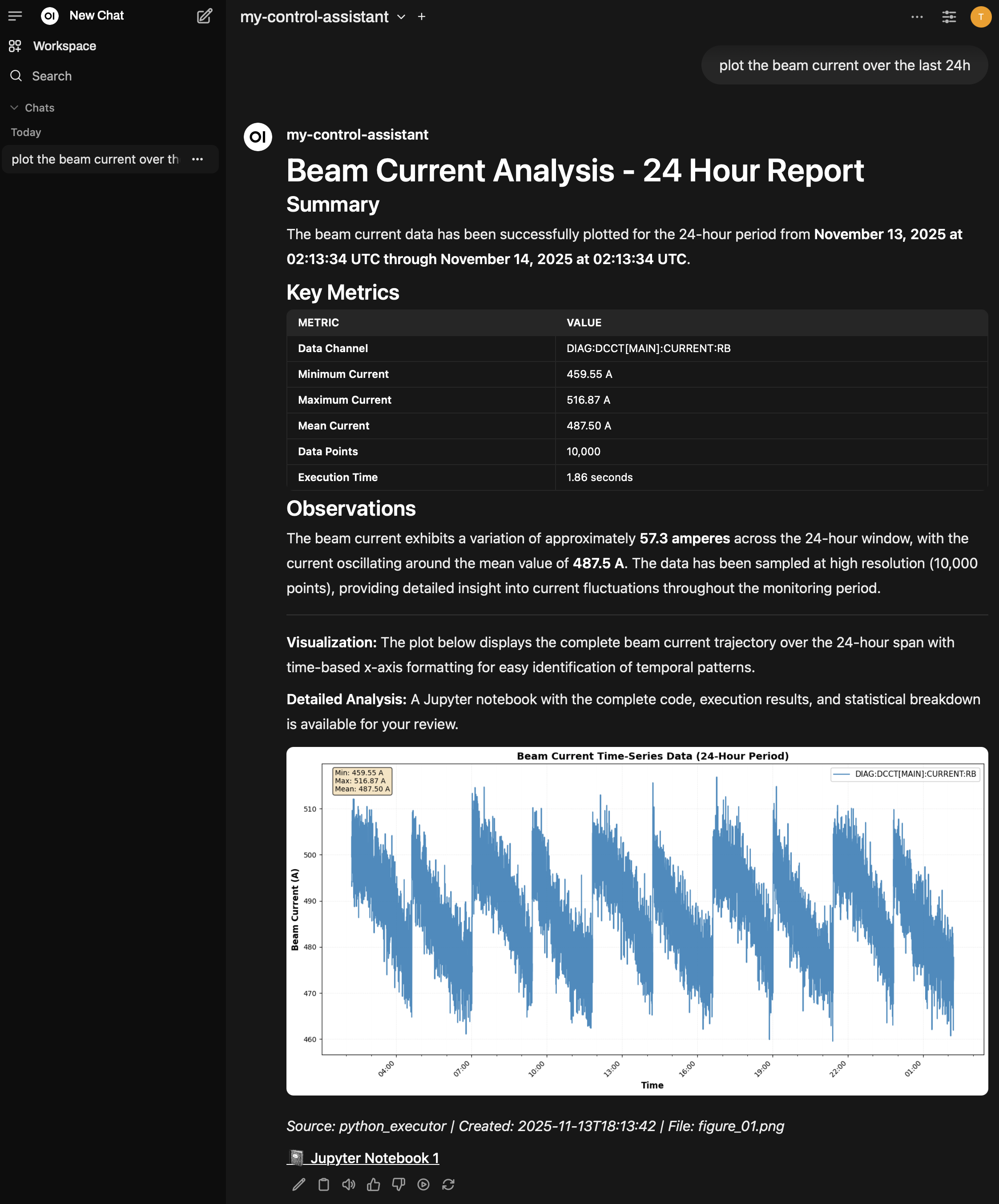
Example conversation demonstrating the query “plot the beam current over the last 24 hours”. The assistant responds with a comprehensive analysis including formatted Markdown tables, embedded visualizations, and links to the generated Jupyter notebook. Note the chat sidebar for session organization and the rich formatting of the response.#
Python Execution: Jupyter Container vs Local#
When your assistant generates Python code for data analysis and visualization, the execution_method setting in config.yml controls where that code runs.
Container Execution (Recommended for Production)
With execution_method: "container", Python code executes in the dedicated Jupyter container. This provides:
Isolated execution environment - Safer execution separate from the agent runtime
Persistent notebooks - Generated notebooks remain accessible in Jupyter for review, rerun, or sharing
Embedded results in OpenWebUI - Figures appear inline in chat responses with clickable links to notebooks
The template includes two Jupyter containers configured with different execution modes:
services:
  jupyter:
    containers:
      read:
        name: jupyter-read
        port_host: 8088
        execution_modes: ["read_only"]
      write:
        name: jupyter-write
        port_host: 8089
        execution_modes: ["write_access"]

execution:
  execution_method: "container"
  modes:
    read_only:
      kernel_name: "python3-epics-readonly"
      allows_writes: false
    write_access:
      kernel_name: "python3-epics-write"
      allows_writes: true
      requires_approval: true
The framework automatically selects between containers using pattern detection - it analyzes generated code for control system write operations (like write_channel()) and routes to the appropriate container:
Read-only container (port 8088) is used when no write patterns are detected
Write access container (port 8089) is used when write patterns are detected (potentially triggering approval workflows)
Generated notebooks include clickable links like http://localhost:8088/notebooks/my_control_assistant/beam_current_analysis.ipynb.
Local Execution (Development)
With execution_method: "local", Python code executes directly in your local environment using the Python interpreter specified in python_env_path:
execution:
  execution_method: "local"
  python_env_path: /path/to/venv/bin/python
This is simpler for CLI-based development (osprey chat) but doesn’t provide persistent notebooks or the safety benefits of containerized execution.
The framework automatically switches to container execution when you deploy with osprey deploy up.
See also
- Installation & Setup
Complete installation and configuration reference
- Container Deployment
Production deployment strategies and best practices
- CLI Reference
Complete CLI command reference for deployment management
- GitHub Issue #17
Automated OpenWebUI configuration implementation plans
Troubleshooting#
Channel Finder Returns No Results
Symptoms: Queries return empty channel lists.
Solutions:
Check database path in
config.ymlValidate database:
osprey channel-finder validatePreview database presentation:
osprey channel-finder previewTest with CLI:
osprey channel-finderEnable debug mode:
config.yml→development.prompts.print_all: trueReview saved prompts in
_agent_data/prompts/
EPICS Connection Issues (use_name_server Configuration)
Symptoms: Connection timeout or “Failed to connect to PV” errors, especially with localhost addresses, SSH tunnels, or certain gateway configurations.
What is use_name_server?
This parameter controls which EPICS Channel Access environment variable configuration method is used:
use_name_server: false(default): UsesEPICS_CA_ADDR_LIST- standard direct gateway accessuse_name_server: true: UsesEPICS_CA_NAME_SERVERS- alternative configuration method
Neither is universally “better” - it depends on your specific EPICS gateway/network setup.
When you might need use_name_server: true:
SSH tunnels to EPICS gateways (common case)
Some gateway configurations that require name server resolution
localhost/127.0.0.1 gateway addresses (often, but not always)
Your facility’s EPICS setup specifically requires
CA_NAME_SERVERS
When to use the default (false):
Standard direct gateway access (most common)
Your facility documentation specifies
CA_ADDR_LISTDefault works - don’t change it!
How to configure:
control_system:
  type: epics
  connector:
    epics:
      gateways:
        read_only:
          address: localhost      # or your gateway address
          port: 5074              # your port
          use_name_server: true   # Try this if default fails
Example: SSH Tunnel Setup
# Create SSH tunnel to EPICS gateway
ssh -L 5074:cagw.facility.edu:5064 user@gateway.facility.edu
Then try with use_name_server: true (but false might also work - depends on setup).
Troubleshooting approach:
Start with default (
use_name_server: falseor omit the parameter)If connection fails, try
use_name_server: trueCheck with your facility’s EPICS admin if both fail
Verify gateway address/port are correct with
caget YOUR:PV:NAME
Debugging Agent Behavior with Development Features
Prompt Debugging
Enable detailed prompt logging in config.yml to see exactly what the LLM receives:
development:
  prompts:
    print_all: true      # Save prompts to _agent_data/prompts/
    latest_only: true    # Overwrite vs. timestamped versions
    show_all: false      # Print to console (very verbose)
Saved prompts include: orchestrator_latest.md (main prompt with conversation history),
classification_latest.md, error_analysis_latest.md, and others.
Use this to:
Understand why the agent made certain decisions
Debug capability selection or parameter extraction issues
Verify your database/context is properly included
Troubleshoot conversation history problems
Raw Error Raising
Get full stack traces instead of agent error handling:
development:
  raise_raw_errors: true   # false (default) for production
true- Immediate exceptions with full traces (for developing capabilities or debugging framework issues)false- Graceful error recovery by the agent (for production deployment)
Quick debugging workflow:
Set
development.prompts.print_all: truein configReproduce the issue
Check
_agent_data/prompts/orchestrator_latest.mdIf needed, enable
raise_raw_errors: truefor detailed traces
Next Steps#
Your assistant is now running in production! Continue to Part 4 to customize and extend it for your facility.