Web Interface#
ARIEL ships with a browser-based search interface, labelled Logbook, that provides the same search capabilities as the CLI in a more approachable form. The interface is a FastAPI application serving a JavaScript single-page application (SPA). It connects to the same ARIELSearchService as the CLI and the ARIEL MCP tools, so any search module you register is automatically available in the UI.
The Screen#
The interface is one screen of three panes: a rail of mailboxes (All
entries, Drafts, Mine, and your saved searches), the list of entries
newest first with the search box and mode chip on top, and the reader showing the
selected entry. Below the mailboxes the rail counts the list’s entries per
author, source, tag, declared facet field and enhancement, with a day
histogram; click a value or a day to filter by it. The search box also takes
author:bob, author:"a b" or date:2026-10 (or a full day), and
Load more at the end of the list fetches the next page. Drag the rail’s edge to resize it; released narrow, it snaps
to an icon strip. Below 640 px the list and reader stack and the reader gets a
Back button. The Status and settings button in the header opens those
drawers; Status counts each enabled enhancement module’s entries as Complete,
Pending, Stale, Failed and N/A, as osprey ariel status does.
The reader shows an entry’s text as stored. An entry that declares
body_format: markdown is shown as formatted text instead, with tables,
lists and links, and each picture at the place the text puts it; see
Entry format in Data Ingestion.
The reader’s Enhancements tab shows each enabled module’s state and output
for the entry. A failed or stale card shows the command that re-runs it,
osprey ariel enhance --module <name> --entry <id>, with a Copy button;
a stale text embedding shows osprey ariel reembed … instead, which rebuilds
the whole table. Below the thread, Related lists up to five entries nearest
by embedding.
Compose opens a sheet over the list column; Expand (not shown when stacked) spans the panel. Follow up in the reader opens it prefilled from the entry and links the new entry to it; the reader lists an entry’s parent and follow-ups. Drafts holds the drafts agents stage, shared across the deployment and expiring after an hour; open one in the sheet, Discard deletes it, Submit uses it up. The sheet autosaves to this browser only, never credentials or attachments, and keeps it when closed until Submit or Discard. The footer line says where Submit goes: this Logbook only, or the facility logbook (and whether it needs credentials).
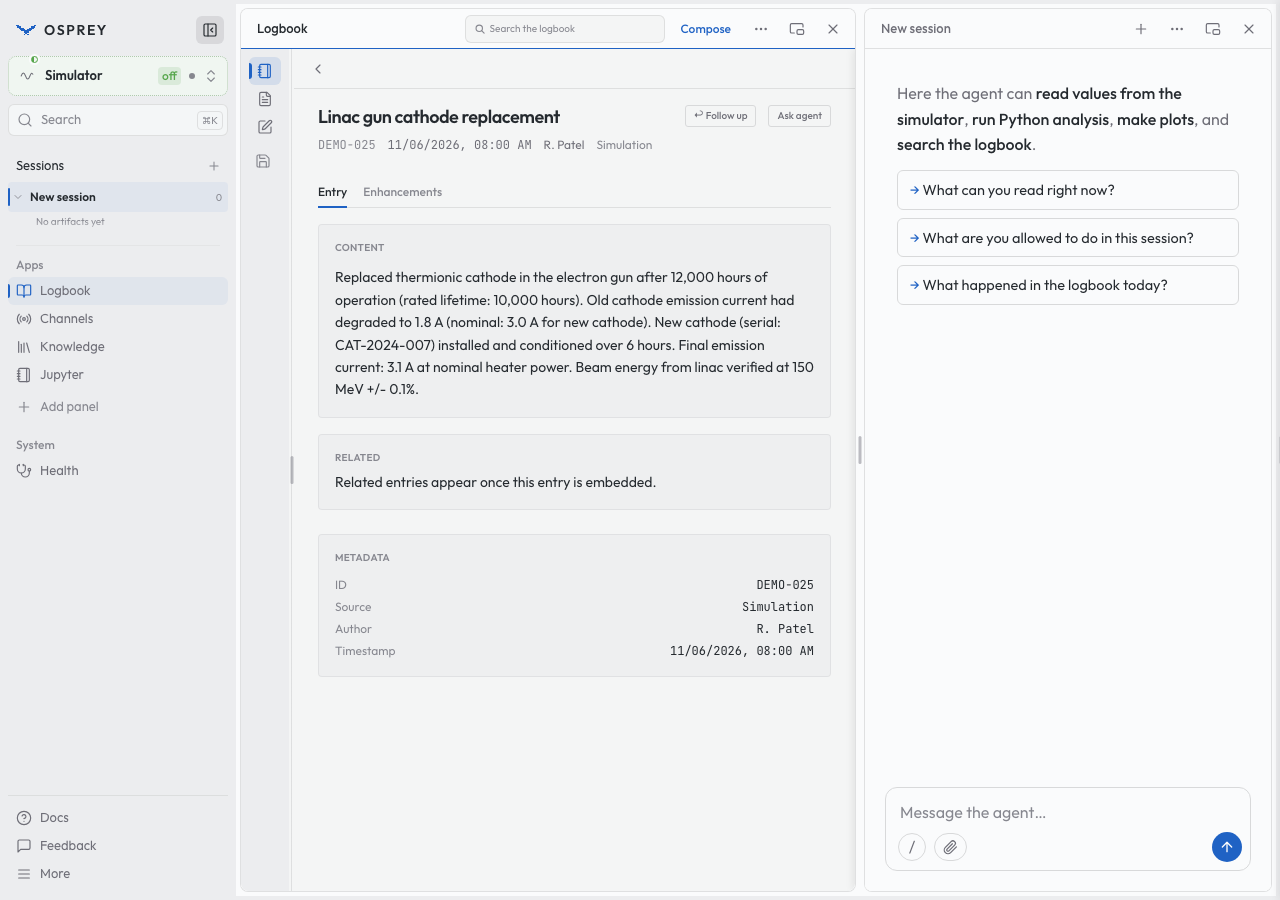
Captured with OSPREY v2026.9.0b3.post6981+gce771a4c5.d20261111 from the demo
tutorial’s seeded logbook.#
The address records the screen as #q=&mode=&box=&f=&sel=&att=&compose=, so a link
reopens the same search, mailbox, filter, entry, attachment and open draft. Old links still work:
#entry?id=…&attachment=…, #create, #status, #search and
#browse are rewritten to that form.
When the logbook adapter is read-only (the common case for the standalone
interface), new entries are saved locally with source_system: "OSPREY Logbook Web"
and an entry_id of the form ariel-<12-hex>; a write-capable facility
adapter publishes them to that logbook. Created entries are searchable
immediately.
Key |
Action |
|---|---|
|
Select the next / previous entry |
|
Open the selected entry in the reader |
|
Focus the search box (standalone) |
|
Collapse or expand the rail |
|
Compose a new entry / follow up the selected entry |
|
Open the Enhancements tab |
|
Ask agent (embedded) |
|
Close the picture, then the compose sheet (autosave kept), then go Back when stacked |
Advanced Options#
The Filters & Options popover, opened from the mode chip, is built from whatever the enabled search modules declare, so the controls in it depend on the deployment. Two things about how it behaves are worth knowing before you tune anything.
Every knob shows its own explanation. A module’s parameter description is hint text under the control, not a hover tooltip.
Knobs you have not touched follow the deployment’s configuration. The panel opens on the configured value, or the shipped default, and a search sends only the controls you changed, so a config change reaches the panel after a restart and reload. Reset clears the whole set: values return to the configured defaults, and every knob counts as untouched again.
That is also why the reranking control behaves the way it does. Rerank
Results opens showing search_modules.hybrid.settings.rerank exactly as the
deployment set it, and clicking it overrides the configured value for your
searches from then on, without changing the deployment. Reset returns it to
the deployment’s value. The key itself is described in Search Modes.
Watching a reranked search run#
Reranking costs seconds, and the interface does not ask you to spend them looking at a spinner. A search that will be reranked runs in two phases: the fast ranking is fetched and drawn first, then the reranked ranking replaces it when it arrives. A status line above the results says which of the two you are looking at — Search complete — reranking with LLM…, then Results updated after reranking.
The second response is drawn from a larger candidate pool, so entries can appear or drop out between the phases: the list is redrawn, not merely reordered.
If the reranker cannot answer — most often on the first query after the search sidecar starts, while its model is still loading — the fast results stay on screen under Could not improve the ranking — showing fast results. Nothing is lost, and there is nothing to do about it; the next query is normally reranked.
Display Preferences#
The rightmost button in the header opens a small card holding everything about how the interface looks, plus the way in to its settings:
- Appearance
Light or Dark. It flips the shade without changing which theme you are in.
- Theme
One button per theme family: Main, DESY, High Contrast, and Retro. Picking a family keeps whichever appearance you are already in, so a switch from Main to High Contrast in dark stays dark.
- Badges
Shows or hides the enhancement badges on list rows. Embedded, the tile bar’s menu carries it, and it starts off when the panel is narrow.
- Settings
Opens the settings drawer, where you can read and edit ARIEL’s configuration block.
Appearance and Theme take effect straight away and leave the card open,
so you can compare two looks without re-opening the menu. Settings closes it,
because it takes you to a different surface. Click anywhere outside the card,
or press Escape, to dismiss it.
Your picks follow you. The theme is remembered by your browser and shared with every OSPREY interface served from the same address, the web terminal included, in both directions.
The Logbook running inside the web terminal, as a panel, behaves differently on purpose. The terminal passes its own theme to the panel in the page address, and an address always outranks the remembered preference, so an embedded panel matches the terminal it sits in no matter what was set elsewhere. The embedded panel has no header of its own either — the terminal’s tile bar is the one header — so the display button does not appear there.
Embedded, the tile bar carries the search box, Compose, and a menu to
hide the rail or save the search; the rail starts collapsed. Keyword search
works immediately; semantic and hybrid choices appear only when their services
are available. Ask agent (a) puts a citation of the entry and the
selected text, or its subject, into the assistant prompt without sending it.
When the agent creates an entry, the list refreshes and flashes the row if you
are at the top; otherwise an n new pill counts it. An agent’s
entry_open (#sel=<id>) selects the entry in place, keeping the search
and scroll. Opening a stored, viewable picture from an entry also offers
Use in Workspace, which copies the prepared rendition into the Workspace
gallery with its logbook provenance; the agent then reads the same stored
pixels, not an external logbook URL.
The GET /api/capabilities endpoint the interface calls at startup, and the
parameter descriptors it returns, are documented in
ARIEL Contracts.
Running the Web Interface#
The web UI is the ARIEL panel of the web terminal: run osprey web. There
is no shipped container service template for it — osprey up only
brings up dependencies such as PostgreSQL.
Programmatic usage:
from osprey.interfaces.ariel.app import create_app

app = create_app(config_path="config.yml")

# Use with uvicorn
import uvicorn
uvicorn.run(app, host="127.0.0.1", port=10300)
Start-up and the database: start-up gives the database 30 s to answer. A
database that refuses the connection, or is not running, leaves the panel up
without search, browse or entry persistence, and the log says so. A database
that takes the connection and does not answer ends start-up instead, and the
log says
the ARIEL store at <host>:<port>/<database> did not answer within 30 s.
Collaboration Welcome
The web interface is a great place to contribute — whether that is improved accessibility, mobile-responsive layouts, or better error handling. If you build something useful, we encourage you to open a pull request so it becomes part of Osprey.
See Also#
- Search Modes
Search module architecture
- ARIEL Contracts
MCP tools, the capabilities API, and the database schema
- CLI Reference
CLI reference for the ARIEL commands