Multi-User Support#
The multi-user Web Terminal turns one OSPREY project into a small shared
product: a landing page where each member of your team picks their name, and a
private, containerized Web Terminal behind each card — all served from a single
host, brought up with a single osprey up.
What You’ll Learn
How it sits beside the single-user
osprey webworkflow, and when each mode is the right toolThe three ideas behind the multi-user stack: one container per user, logins, and one nginx front door
The
modules.web_terminalsconfig block that switches it onStanding the preset’s full stack up — its read-only, read-write and admin logins plus the shared logbook, knowledge and channel-finder logins
Day-to-day operations: adding, reseeding, and removing users
What each terminal records, and who can read it
Prerequisites: The concepts need none. To stand the stack up you’ll
want Docker (or Podman) and your model-provider credentials — the
demo preset ships the whole block pre-wired.
Two subjects have pages of their own:
What each login may do — read-only, read-write, admin — where a tier comes from, and what stops a session doing more.
Token, open, passwords OSPREY manages or your facility’s single sign-on, HTTPS, and what happens when someone leaves.
Single-user is the front door#
The everyday workflow stands on its own. From any project directory,
osprey web
launches the single-user Web Terminal as one local process — no containers, no
proxy, ready in seconds at http://127.0.0.1:10100. It prints a login URL
(…/?token=…, once, at startup) that signs you in for 12 hours by default —
the cookie outlives closing the browser — before redirecting to the clean
address. The token is that server’s operator secret rather than a one-shot
code, so treat the URL like a password. It is the fastest way to try OSPREY and
the right tool whenever one person sits in front of one machine;
Run the Web Terminal covers it.
The multi-user stack is strictly opt-in. It lives in a
modules.web_terminals block in the deployment’s built config.yml, read
only by the lifecycle verbs (and validated by
osprey scaffold web-terminals lint).
osprey web reads exactly one key from it — auth.session_lifetime, which
sets how long its own login cookie lasts — and nothing else, so a project that
carries the block (the demo preset ships one) still runs
single-user like one that does not. Reach for the multi-user stack when several
people need their own terminal on a shared machine, and stay with osprey web
for everything else.
How it works#
Three ideas carry the whole design:
One container per user. Every name on the roster gets its own Web Terminal
container, plus two named volumes that belong to the user, not the container:
a workspace volume (the files the agent reads and writes) and an
agent-configuration volume. Upgrading or rebuilding an image replaces the
container but never touches those volumes, so a user’s files and settings
survive every redeploy. On first start, osprey up seeds each user’s
configuration volume automatically — no per-user setup steps.
A tier is an access level of the deployment’s own agent. Each user is
assigned a tier, and each tier is its own rendered OSPREY project with its own
config.yml, permissions, skills and tool servers, built from one small file
in tiers/ laid over profile.yml. A tier only adds; it never removes
anything from the profile. The demo preset ships three: a
read-only and a read-write tier, separated by whether the session may move
the simulator, and an admin tier, separated by whether it may change the
deployment it runs in. Privilege Tiers lays out what each one
carries and what makes the boundary hold.
A shared login is opened by everyone on the roster, or only by the
principals its shared: entry names. A file in tiers/ that shared:
names renders like any other login, sealed read-only on the machine. The
preset’s three say lists: own, so each is a complete agent of its own on
the deployment’s services:
logbook searches and synthesises the logbook from the same PostgreSQL the
operators write to; knowledge answers how the machine is built from the
facility knowledge graph, the channel finder and the knowledge bundle;
channel-finder returns channel addresses from the hierarchy. See
Share a card with more than one person.
osprey build renders one project per file in tiers/. In
the preset’s local mode, osprey up builds each one’s container image
locally, so no registry or CI is involved. A deployment can pull them from a
registry instead; see Pull the terminal images from a registry.
One front door. An nginx reverse proxy serves the landing page and proxies
/u/<name>/ to that user’s container. The per-user containers are pinned to
the loopback interface, so nginx is the only network path in. The landing page
lists the roster, and its cards are how someone picks an identity; whether
clicking a card lets them in depends on whether you have turned login on —
see Require a Login.
The config block#
Show the config block
The whole feature is one config block. This is an excerpt of what a
project built from the demo preset carries in its config.yml;
the preset also sets landing.notices and landing.footer (see
What your operators read first):
modules:
  web_terminals:
    enabled: true
    image_source: local       # osprey up builds the images itself
    default_tier: readonly
    auth:
      method: password
      session_lifetime: 43200
      allow_insecure_http: true
    landing:
      groups:
      - type: users
        label: Users
      - type: shared
        label: Shared logins
    users:
    - name: alice
      index: 0
      tier: readwrite
      display_name: "Control Room (Alice)"
    - name: bob
      index: 1
      tier: readonly
      display_name: "Read-Only View (Bob)"
    - name: carol
      index: 2
      tier: admin
      display_name: "Deployment Admin (Carol)"
    shared:
    - logbook
    - knowledge
    - channel-finder
The auth: lines put every terminal behind a password login.
allow_insecure_http: true suits 127.0.0.1 only; see
Require a Login before you serve the stack on a reachable host.
Each tier and each shared: entry names a file in the
repository’s tiers/, written by osprey init. Every render
shares one data tree, one set of secrets and one set of your own
artifacts. The build renders each into
build/<project_name>-<name> and records it in
build/config.yml; nothing here names a path. An unknown login is
rejected by both osprey scaffold web-terminals lint and
osprey up.
The users list is the roster — the single source of truth for who
exists. A name becomes a URL path segment and an environment-variable
suffix, so it has to match [a-z0-9][a-z0-9_-]*; that is checked in
every auth mode, not only behind a login wall. A bare name (- dave)
resolves to default_tier —
read-only, so a hastily added user lands on the safe side; an entry with
an explicit tier picks it, and an optional display_name
becomes that user’s browser tab title. An entry may name a role
instead of a tier — one mapping written once rather than a tier
pinned per user, and the half a single sign-on provider’s groups can
decide; see Let single sign-on pick the tier. Behind a login wall an
entry may also set access:, the set of principals allowed to open
it as a shared card: any for every roster login, or a list naming
single sign-on identities or a whole email domain — see
Share a card with more than one person. The roster sets
no ports.
Each user’s host ports come from the deployment’s port layout — one
hundred-port family per companion panel (artifact gallery, ARIEL,
channel finder, knowledge panel, …) plus the terminal itself, and
each user takes the family’s first port plus their index. At the
default deployment.port_base that puts alice (index 0) on
10100, bob (index 1) on 10101 and carol (index 2) on
10102, with their artifact galleries on 10200–10202. Shared
logins take slots counted down from the top of the block, in shared:
order: logbook on 10199, knowledge on 10198, channel-finder
on 10197. The panel bands lists every family;
move the whole deployment with deployment.port_base rather than a
family at a time. A facility that must pin one family on its own can
still set that family’s modules.web_terminals.<family>_base_port
here — see The keys.
One optional key belongs beside these rather than in the roster:
external_origin, the address browsers actually reach this deployment
on. Leave it out and that address is derived from deploy.fqdn and
nginx_port, which is right whenever a browser talks to this nginx
directly. Set it when something else stands in front — a facility load
balancer terminating TLS, a reverse proxy — because the terminals check
it before allowing any action, and nothing here can guess what that
front door answers on. nginx answers only on that address. A request
under any other name, whether another DNS name, the bare IP or
localhost, is redirected to the same path there, so put the name
browsers should open in deploy.fqdn or external_origin. See
Serve it over HTTPS.
landing.groups lists the page’s sections in order: users (the
people), shared (one card per shared: login, drawn as a panel
and titled by the login’s name:) and links. Left out, the page
shows people, then shared logins. Each group takes a label; the
shared panel is headed “Shared logins” by default. Neither changes
anything about a container.
Tip
Give every roster entry an explicit index before you ever
remove one. Once indices are pinned, deleting an earlier user can
no longer shift a later user’s ports out from under a running
deployment.
The roster drives everything: edit it, then let the lifecycle verbs reconcile reality against it.
Edit it in the source profile — the modules.web_terminals.users
entry under config: in profile.yml — and rebuild. A roster change
made directly in the built build/config.yml deploys, but the next
build overwrites it. Rebuilding also seeds an empty
web-terminal-context/<user>/ slot for each new operator, which is
where their per-user context goes.
Beside those slots sits web-terminal-context/base.md — the shared
baseline every seeded user’s CLAUDE.md starts from. osprey init
materializes it from the preset so the text is visible and editable in
your repo; edit it there and rebuild, and every terminal picks up the
change. A profile without one falls back to a generic framework
baseline.
Task |
Command |
|---|---|
Add a user |
Add a roster entry with the next free |
Rename or drop a user |
Edit the roster entry, and the user’s entry in
|
Reseed workspaces |
|
Remove one user |
|
Clean up leftovers |
|
Tear it all down |
|
osprey status and osprey down work exactly as they
do for any other OSPREY service stack.
Run the multi-user stack#
From a fresh checkout, create a deployment repository from the bundled preset, then build and bring the stack up from inside it:
# 1. Create the deployment repo from the demo preset
osprey init demo --preset demo

# 2. From inside the repo, render it and bring the whole stack up
cd demo
osprey build
osprey up
That is the entire setup for the preset’s roster: the preset ships the
modules.web_terminals block above, so no extra flags or configuration are
needed. Alongside the web tier,
osprey up brings up everything else the demo tutorial deploys
— the virtual accelerator, the bluesky services, and the supporting
PostgreSQL and agent-record containers — so the control-room terminals open onto a
working machine, the logbook login onto a live logbook and the knowledge
login onto a seeded facility graph, not an empty shell.
Trim the roster to the users you want, in profile.yml before
osprey build:
Delete the
usersentries you do not want.Delete
tiers/<name>.ymlfor every tier nobody uses.If
readonlyis gone, pointdefault_tierat a tier that is left.Drop removed users from
agent_record.readers, orosprey upstill mints a reader key for them.
Note
Every terminal’s agent needs your provider credentials at run time. Add them
to the repository’s .env before osprey up (the preset defaults
to Anthropic — set ANTHROPIC_API_KEY). If you chose a different provider
(osprey set provider=...), that choice is recorded in profile.yml and
carried into every login the build renders.
Note
Running from a source checkout of the OSPREY repository rather than a
released install? The images install the framework from PyPI by default,
and a source tree’s version isn’t published there; --dev bakes your
local checkout into the images instead. Give it to both commands,
osprey build --dev then osprey up --dev, or run
osprey up --build --dev: osprey up --dev refuses a render built
without it.
What osprey build and osprey up do for the web tier#
The build renders every login.
osprey buildrenders one project per file intiers/, into the build zone beside the main render (build/demo-readonly,build/demo-readwrite,build/demo-admin,build/demo-logbook,build/demo-knowledgeandbuild/demo-channel-finder). Every render shares the profile’s data tree, secrets and artifacts, and inherits the choices recorded there (provider, model): edit the profile once and every terminal picks the change up. A start renders none of this —build/is the whole account of what will run — so a render missing at start time is reported as a stale or partial build, with a rebuild as the remedy.The start builds each image. In the preset’s local mode (
image_source: local),osprey upbuilds one image per render (tagged<project>:local, e.g.demo-readwrite:local) from that rendered project — no registry, no CI. Registry mode pulls them instead; see Pull the terminal images from a registry.Brings up the web tier. An nginx reverse proxy (container
demo-nginx) serves the landing page onhttp://127.0.0.1:10000, and one Web Terminal container comes up per user —demo-web-aliceon host port10100,demo-web-bobon10101anddemo-web-carolon10102, and one per shared login —demo-web-logbookon10199,demo-web-knowledgeon10198anddemo-web-channel-finderon10197— each reached through the landing page. With login on, the auth sidecar runs asdemo-auth, from a locally builtdemo-auth:localimage. Every one of these names is<project_name>-…, after the profile’sproject_name:, whichosprey inittook from the folder name.Note
Upgrading a multi-user deployment
Before this naming, the web containers and the auth image took their prefix from the since-removed
facility.prefixkey (ca-nginx,ca-web-alice,ca-assistant-auth:local). The firstosprey upafter upgrading replaces them with the<project_name>-…containers and builds the auth image under its new tag; no old-named container is left running. The volumes keep their names, so every user’s workspace carries over.
Stop the stack again with osprey down; check on it with
osprey status.
Note
The web stack runs with host networking. On Linux,
http://127.0.0.1:10000 is reachable as-is. That address is the
preset’s deploy.fqdn, and http://localhost:10000 redirects to it.
On macOS, a container’s “host” is the Linux VM. With Docker Desktop,
enable host networking (Settings → Resources → Network) so the stack’s
ports reach your browser; Colima needs no setting. Host networking is one of the limits
listed in What the perimeter needs.
If another OSPREY deployment already occupies these ports on this host, give
this one its own block rather than moving services one by one — for example
osprey set config.deployment.port_base=20000 && osprey build — before
osprey up. See Ports.
Pull the terminal images from a registry#
With image_source: registry (the value whenever the key is unset),
osprey up builds no terminal image. It pulls one image per render (each
login the roster or shared: uses), under names it derives itself.
Who pulls it |
Image |
|---|---|
The |
|
Every other login, shared ones included |
|
The auth sidecar, when login is on |
|
<render> is the login’s file name (tiers/<name>.yml), not its
project. The build derives the project as
<project_name>-<render> from the profile’s project_name:.
A login whose image is built elsewhere states its project, the
project the image was built from, in its own file (and may state its
image); its terminal runs in /app/<project>.
<tag> is modules.web_terminals.image_tag, latest when unset.
A ${VAR} in it is expanded from the environment of osprey build and
osprey up.
In registry mode a variable that is unset or empty there is refused by lint,
the build and up (code web_terminals.empty_image_tag).
<registry.url> is the top-level registry.url of config.yml, with no
scheme.
It is the only namespace: two deployments that share a registry keep their
images apart by giving registry.url different paths.
When the profile has a deploy: block in registry mode, the build writes
deploy.registry.url into this registry.url, so the registry is named once.
Setting registry.url in the profile’s config: block
(osprey set config.registry.url=<path>) points the terminal images somewhere
else, and that value wins.
A profile with no deploy: block sets it there.
The scaffolded pipeline builds only the facility’s own service images, not
these, so the facility’s pipeline must push them.
Put that job in ci-extra.yml (see Deploy a Facility).
Build each image from its rendered project, build/<project_name>-<render>:
the same render image_source: local builds as
<project_name>-<render>:local.
The pipeline pushes the auth sidecar under its name too, unless
modules.web_terminals.auth.image pins a published one; see Require a Login.
osprey scaffold web-terminals lint, osprey profile validate and
osprey build refuse a registry-mode config with no registry.url (code
web_terminals.registry_mode_missing_url).
osprey up refuses to render it.
They also refuse a config with web terminals enabled and no tier files (so no
render catalog) or no default_tier, in either image source (code
web_terminals.requires_catalog), and a login whose image is built
elsewhere and states no project (code
web_terminals.render_missing_project); osprey up refuses both before it
mints anything.
For example, with tiers/readonly.yml and tiers/readwrite.yml in the repo
and this config:
registry:
  url: registry.example.org/accelerator/demo

modules:
  web_terminals:
    image_tag: "2026.09.1"
    default_tier: readonly
    users:
    - name: alice
      index: 0
      tier: readwrite
    - name: bob
      index: 1
osprey up pulls:
alice  registry.example.org/accelerator/demo/web-terminal-readwrite:2026.09.1
bob    registry.example.org/accelerator/demo/web-terminal:2026.09.1
bob names no tier, so bob gets the default_tier and the unsuffixed
image.
The landing page#
Open http://127.0.0.1:10000. The landing page groups the users into cards,
each labelled with the tier it resolves to:
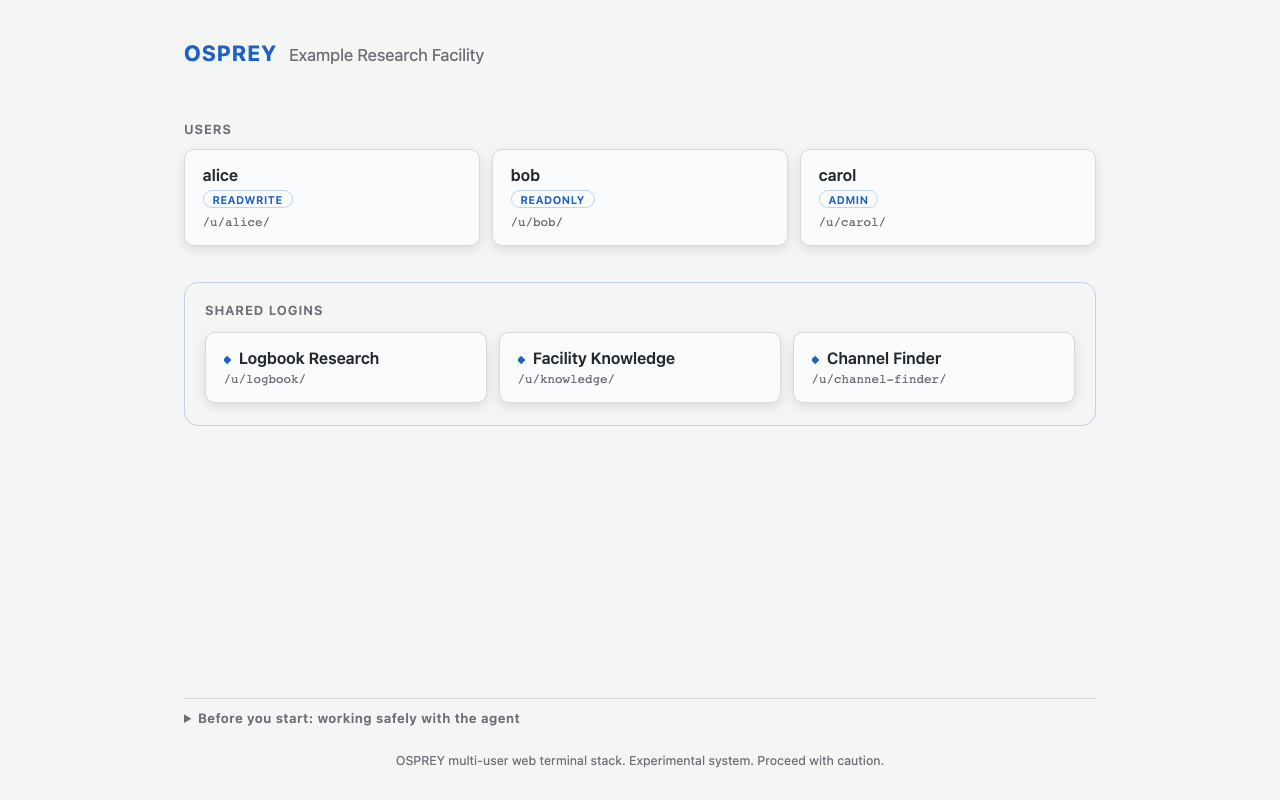
The grouped landing page: alice resolves to the readwrite tier, bob to readonly, carol to admin, and the shared cards open the logbook, knowledge and channel-finder logins. Click a card to open that session. Captured with OSPREY v2026.9.0b3.post6981+gce771a4c5.d20261111.#
The grouped landing page: alice resolves to the readwrite tier, bob to readonly, carol to admin, and the shared cards open the logbook, knowledge and channel-finder logins. Click a card to open that session. Captured with OSPREY v2026.9.0b3.post6981+gce771a4c5.d20261111.#
Each operator card names its tier explicitly — alice the readwrite tier,
bob the readonly one; carol is on the admin tier. (A bare roster entry would fall back to the
preset’s default_tier, readonly, so an implicit user always lands on
the safe side.) The shared cards sit apart, in the accent-edged Shared logins
panel, each titled by its login’s name: — and carry no tier badge, because
a shared card is not a person on a tier. A shared card never writes to the
machine or changes the deployment, whatever its file or the host sets. Its
login page asks for a roster name and that person’s password, so nobody needs
a credential for the card itself. Clicking any card opens that session at
/u/<name>/, proxied by nginx to its own container.
A deployment that would rather not publish its roster can replace the name cards with one sign-in button; see Keep names off the landing page.
What your operators read first#
At the bottom of the landing page sit collapsible notices — the things your facility wants people to read before they open a terminal. Each notice is one markdown file, listed in config:
modules.web_terminals:
  landing:
    notices:
    - data/landing/working-safely.md
    - data/landing/local-procedures.md
    footer: "Example Research Facility control room. Questions: ext. 5555."
The file’s first heading (# Working safely with the agent) becomes the
section label, and everything after it becomes the panel. So adding a section
means writing a file and listing it — there is no schema to learn, and nothing
about the text lives in config.yml.
osprey init writes a starter data/landing/working-safely.md into your
project. It is yours: rewrite it for your facility, or drop it and list your own
files instead. Sections appear in the order you list them, and each one gets an
id from its filename, so you can point someone at
http://…:10000/#local-procedures rather than at the page.
Two edge cases are worth knowing:
Leave ``notices`` out entirely and you get OSPREY’s built-in safety notice. A config that says nothing still ships something.
Set ``notices: []`` for no notices at all. That is the explicit way to turn them off.
A file you list that does not exist is skipped and reported by osprey build
as a warning. It is not replaced by the built-in notice — showing OSPREY’s
safety text where your own procedures should have been would be worse than
showing a gap.
Note
Notice files are rendered to HTML at build time, so they are trusted input
at the same level as config.yml itself — anyone who can edit a notice can
already edit your deployment’s configuration. The footer is a plain
string and is always escaped.
Logging out and switching users#
To log out, use the Sign out row in the sidebar footer, as described in Sign out. It returns you to the landing page. From there, pick another card to open a different user. Logging out ends the session for real — the terminal drops its running processes, so the next login starts fresh. Simply navigating away (without logout) keeps the session warm, and returning to the same user reconnects to it.
What the stack records#
Each terminal writes its own audit trail — refused writes, tool calls, hook
decisions, config edits — as entries in the agent record, through a spool
directory of its own under var/spool/<user>/ in the project on the deploy
host. A container is handed that one directory and nothing else under
var/spool/, and the record files every entry under the identity of the
directory it came from, so no user’s terminal can rewrite another’s trail or
write in another’s name. The authentication service records logins through its
own sidecar spool directory, which no terminal mounts at all.
That makes the agent record the place a question spanning several people is answered, by a reader whose record login covers those identities (Let others read it). The audit trail has the record shape, and what append-only does and does not buy you.
The history page#
Where the web terminals sign people on (auth.method of password or
oidc), osprey up also runs a history page: every session the agent
record holds, each with its conversation, tool calls, approvals and preflight
checks, read in a browser. It is served at /history/ on the history
page’s origin, the web tier’s second server on its own port
(modules.web_terminals.history_port, or
modules.web_terminals.history_origin behind a load balancer), so a page an
agent wrote on the terminals’ origin cannot read it. A visit without a valid
sign-in goes to the terminals’ sign-in and comes back. Without sign-on there is
no history page; each terminal still shows its own past sessions.
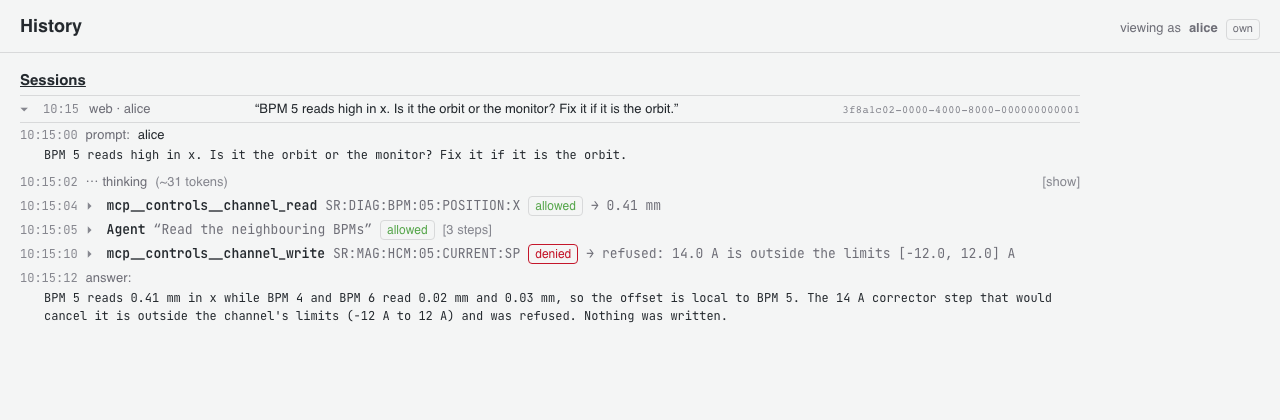
One session on the history page, as its owner sees it: the prompt, each tool call with its decision and result, and the answer. A row unfolds to the call’s input and full result. Captured with OSPREY v2026.9.0b3.post6981+gce771a4c5.d20261111.#
One session on the history page, as its owner sees it: the prompt, each tool call with its decision and result, and the answer. A row unfolds to the call’s input and full result. Captured with OSPREY v2026.9.0b3.post6981+gce771a4c5.d20261111.#
Who sees what is decided per person, from the roster, every time a page loads.
In profile.yml, the roster goes under config: and agent_record: is a
top-level key. Merge these keys into the modules.web_terminals: and
agent_record: entries already there; a second copy of either key silently
replaces the first. A list in the snippet, such as users:, stands as the
whole list, so write every entry you keep into it.
config:
  modules.web_terminals:
    authorization:
      roles:
        operator: {tier: readwrite, history: all}
    users:
      - name: alice
        index: 0
        tier: readwrite             # history: own, the default
      - name: bob
        index: 1
        role: operator              # history: all, from the role
      - name: carol
        index: 2
        tier: admin
        history: all

agent_record:
  readers:
    - name: carol                   # a reader is a reader everywhere
Own (the default): the sessions recorded under the person’s own roster name.
All:
history: allon the person’s roster entry, or on a role inauthorization.rolesthe person holds, shows every user’s sessions.A reader — a roster user named under
agent_record.readers, or a reader recognised by itsoidc_subject— sees every user’s sessions, bounded by that reader’skindsanddays_back(Let others read it). The reader entry takes precedence overhistory:.
The rules at the edges:
A shared card’s sessions are recorded under the card’s name, so they are listed only for
allviewers and readers. Opening a shared card never widens the opener’s own scope. Signing in as a shared card lists nothing unless the card’s own roster entry (or its role) sayshistory: all.A person admitted to a card by an access rule, with no roster entry of their own, is refused: the page has no person to scope by.
A dispatched job is recorded under its worker,
dispatch-worker-<i>, so it is visible toallviewers and readers; the dispatch dashboard links each run to it.A preflight check filed by the queueserver appears on a person’s own page only when it matches that person’s own queue-submit call within 60 seconds; agent-authored session plans run inside the queueserver container, so an unmatched row is never attributed to anyone in an own view.
allviewers and readers see every row as stored.A payload the record stored outside itself is shown as a marked reference.
Where several people are signed in in one browser, the page shows the last sign-in and offers a switch among the others, each in their own scope.
A change to the roster, the roles or the readers applies on the next page load after
osprey up; a person taken out ofreadersis back in their own scope then, even with the page still open.
The page names the viewer to the agent record, and the record applies the scope above itself, from this deployment’s config, so the scope is a permission of the record, not a filter of the page.